vFunction Workshop > Service Extraction > Service Creation > Environment Setup

Connect to the Windows VM as mentioned in the Accessing your VM’s section.
As we will be upgrading the service to java 21 we need to download and install the openjdk.
Install Java 21
Open the Chrome web browser and navigate to “https://learn.microsoft.com/en-us/java/openjdk/download”. Find OpenJDK21 and Click to download the Windows x86 exe file.
https://learn.microsoft.com/en-us/openjdk/download
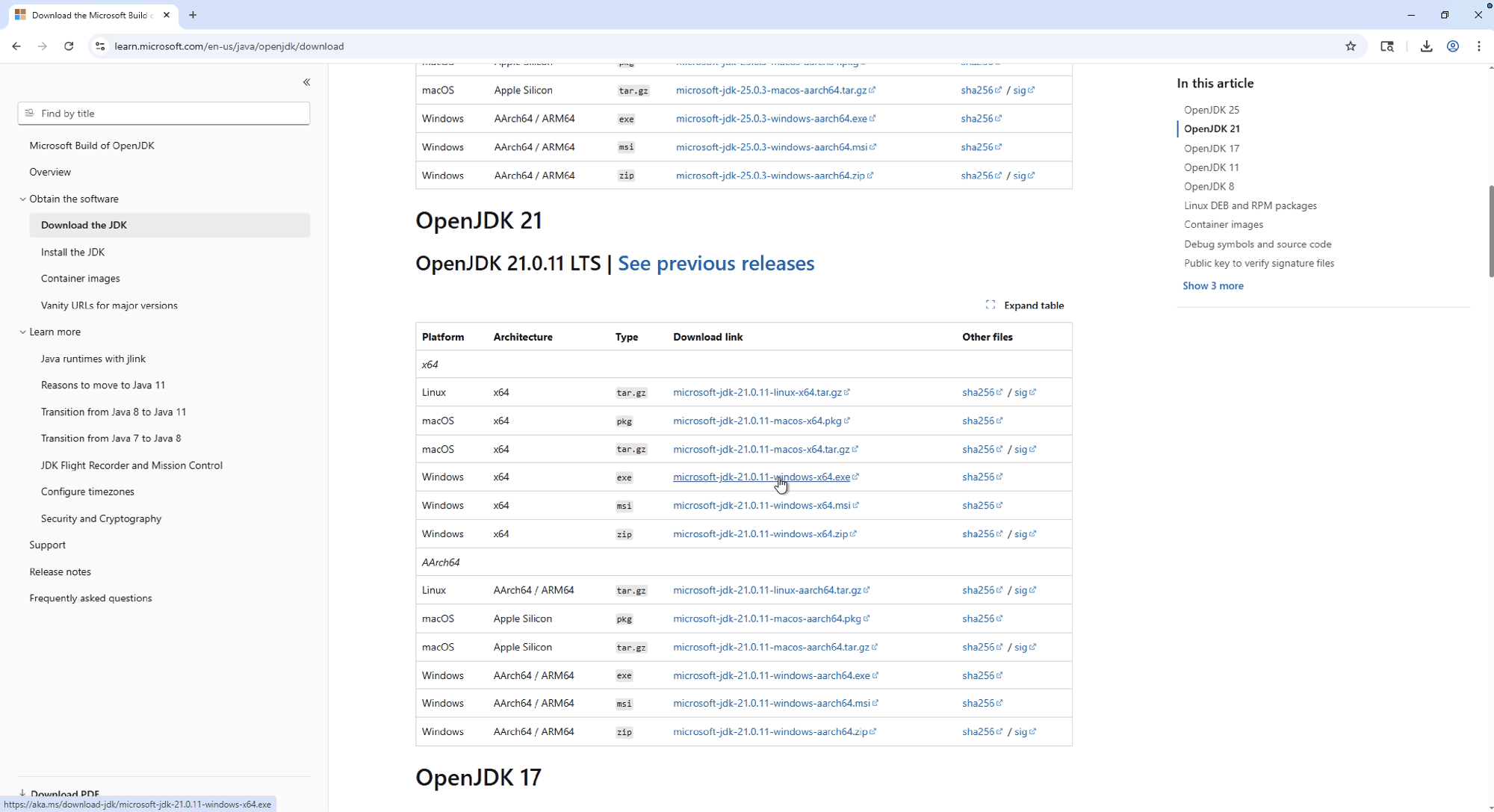
Go to Download’s and Click to start the installer

Click “Install for All users”

Click “Yes to approve the app to make changes

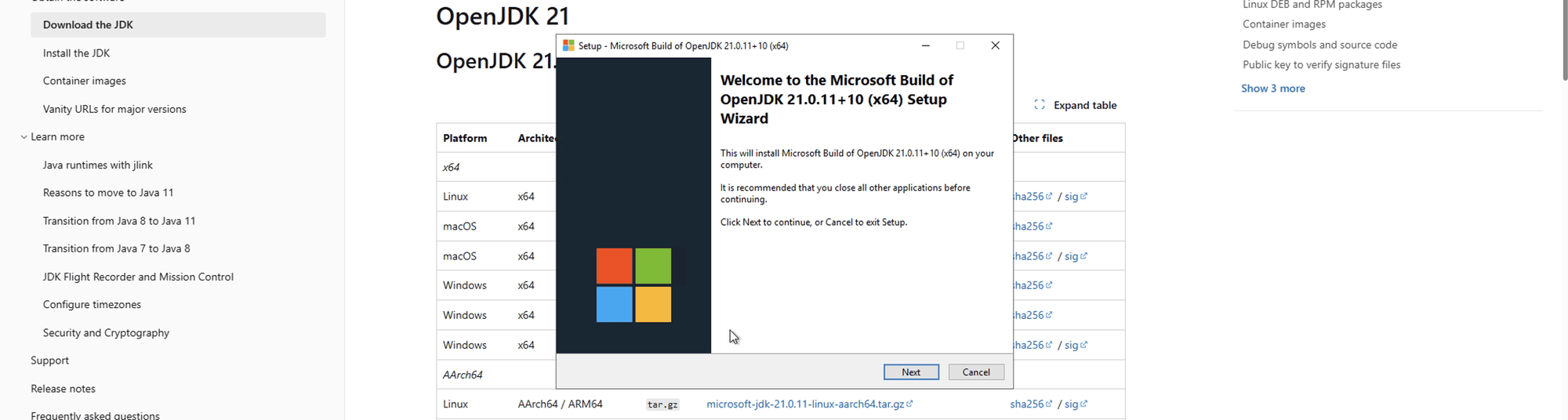
Click “Next to start the Wizard
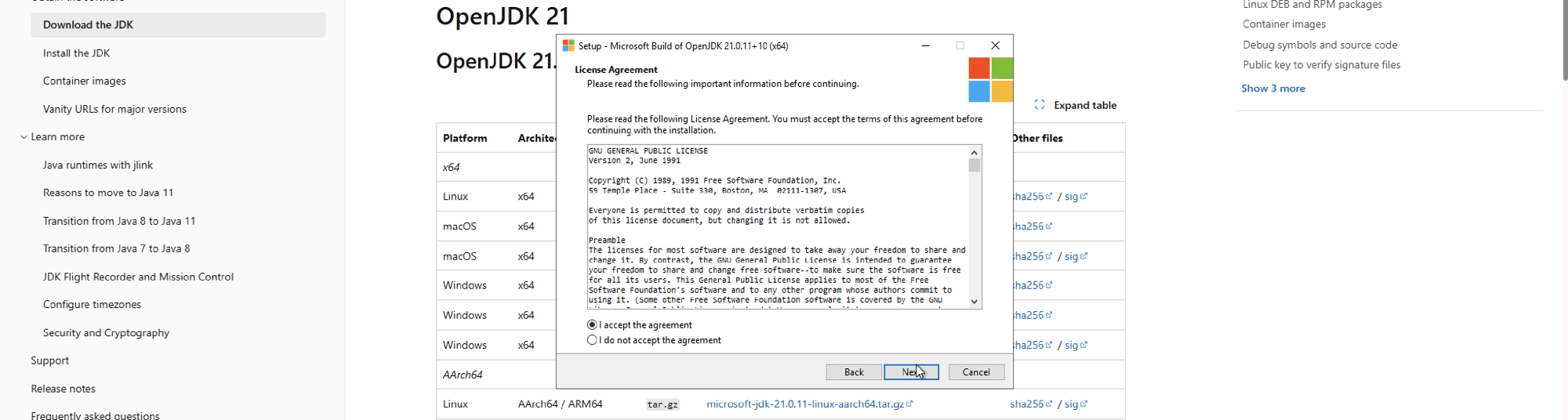
Accept the license agreement and Click Next
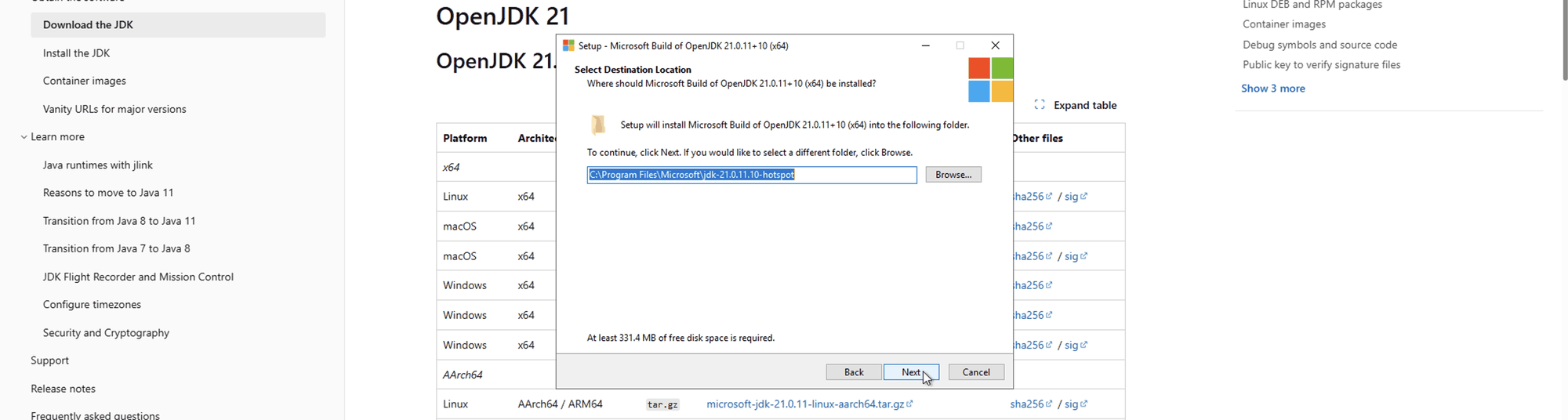
Use the default install location and Click Next
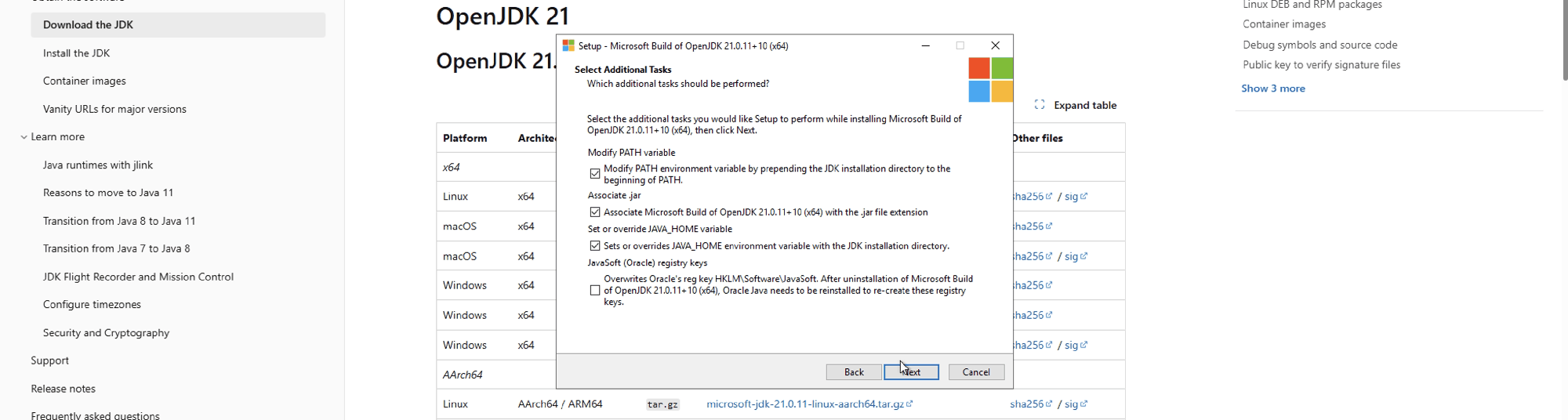
Select “Sets or overrides JAVA_HOME” and Click Next
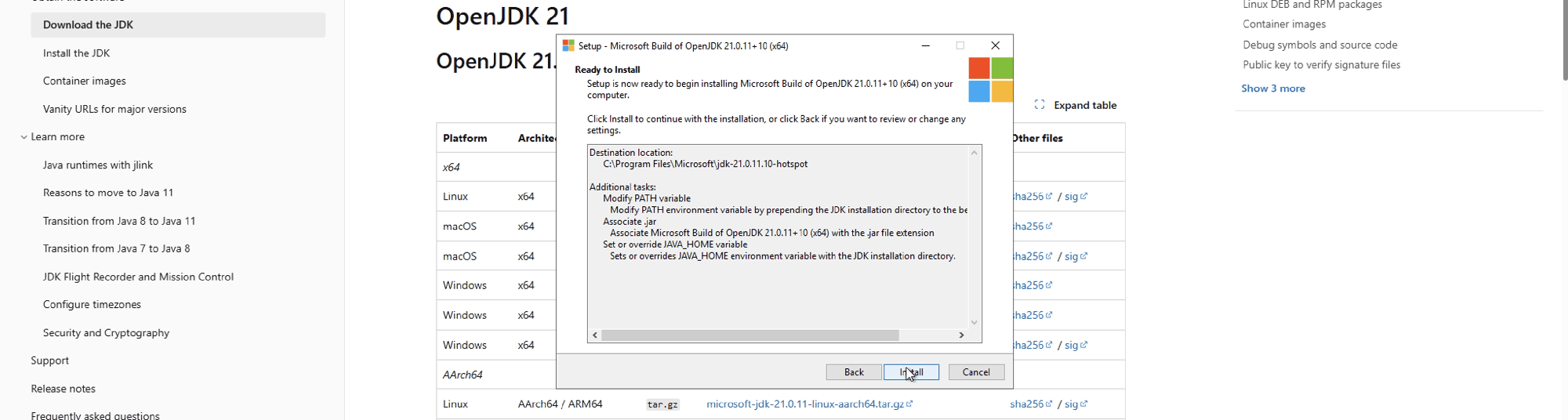
Click Install
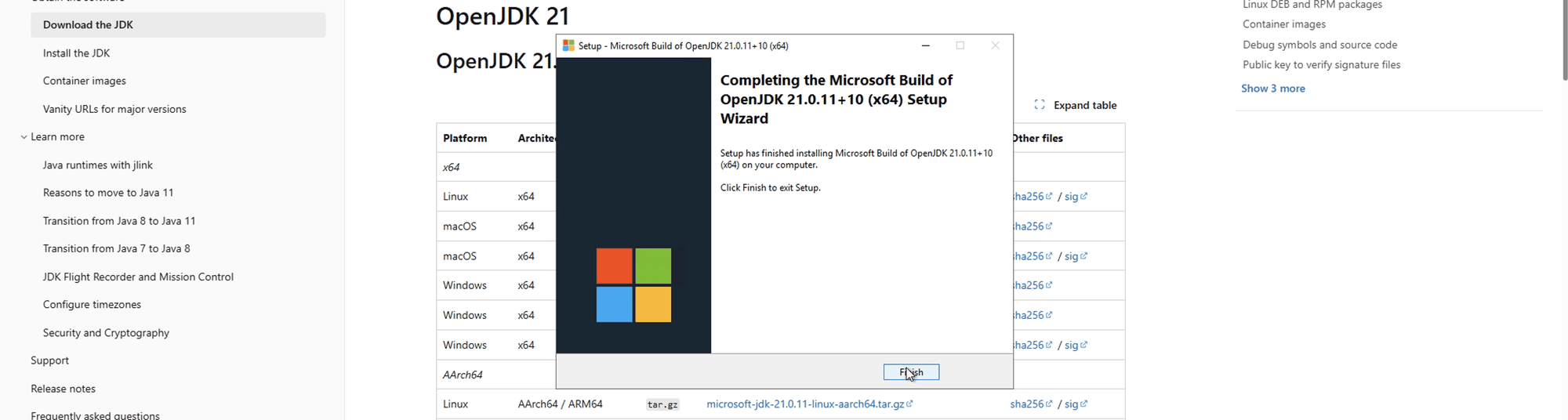
Click Finish