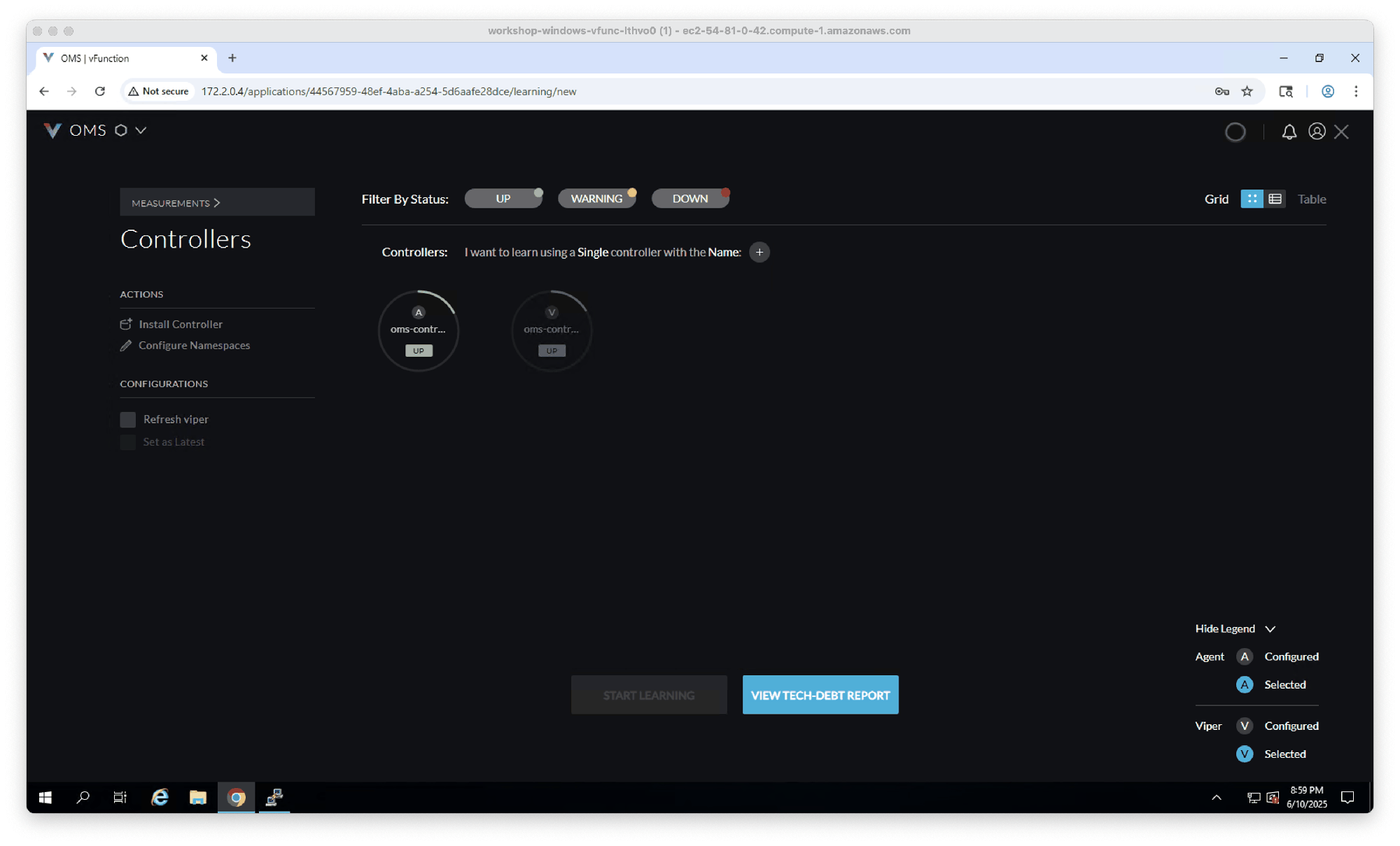
In this section, we will setup the access to your windows and linux VM enabling to perform the vFunction workshop.
Setup the remote desktop connection to Windows VM
In the EC2 console, after selecting or going into the details of windows VM, click on “Connect”

Select “RDP Client” and then click on “Download the remote desktop file”.
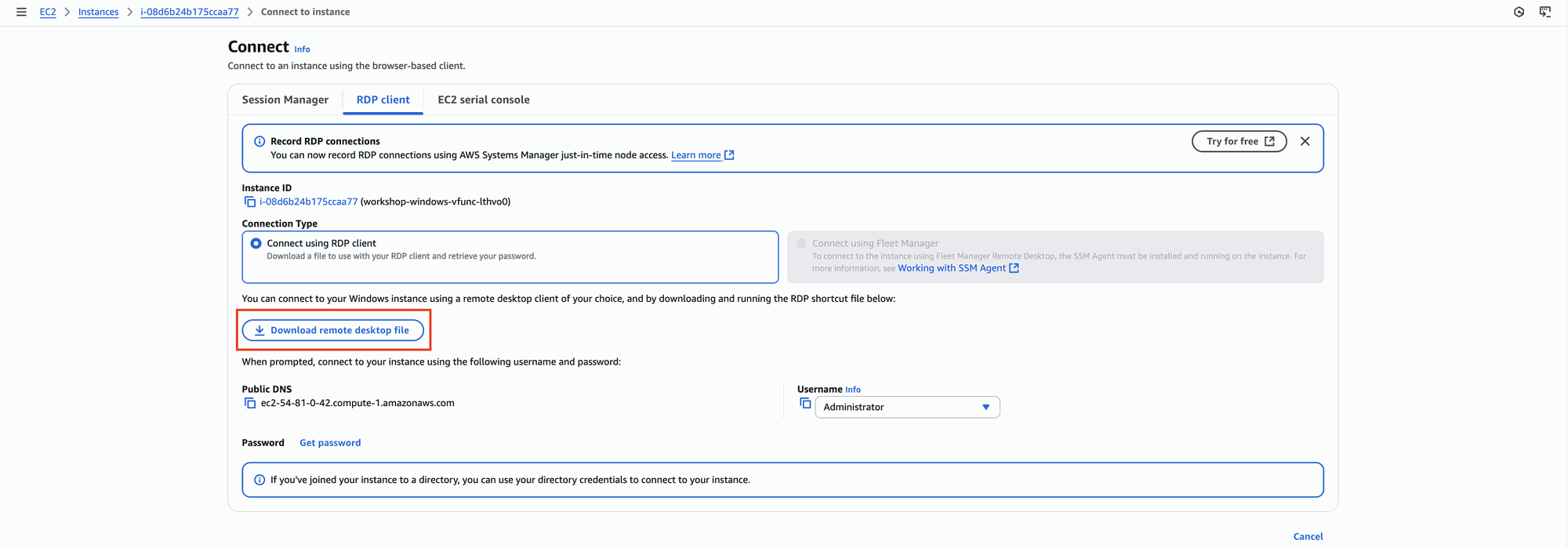
Open the downloaded file with your RDP client and enter the credentials: username
workshop, passwordvFunction2021!
Click on “Continue” to approve the certificate to access the VM to approve the certificate to access the VM

You are now logged in to the Windows VM
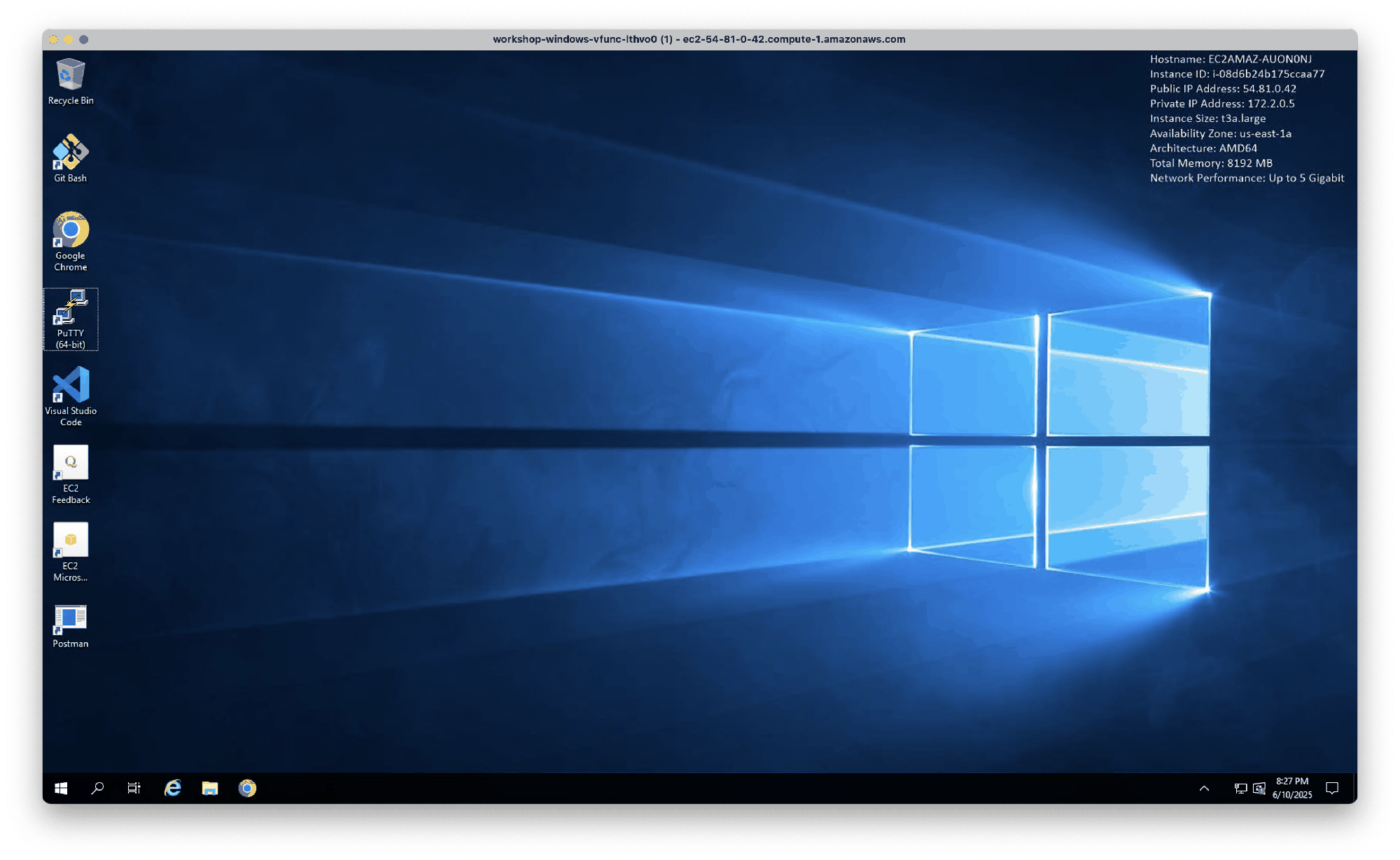
Connect to Linux VM via SSH
Copy the Private IP of the linux VM from the AWS Console.

In the windows VM, Open Putty and paste the private IP address in the “Host Name” box and click on “Open”.
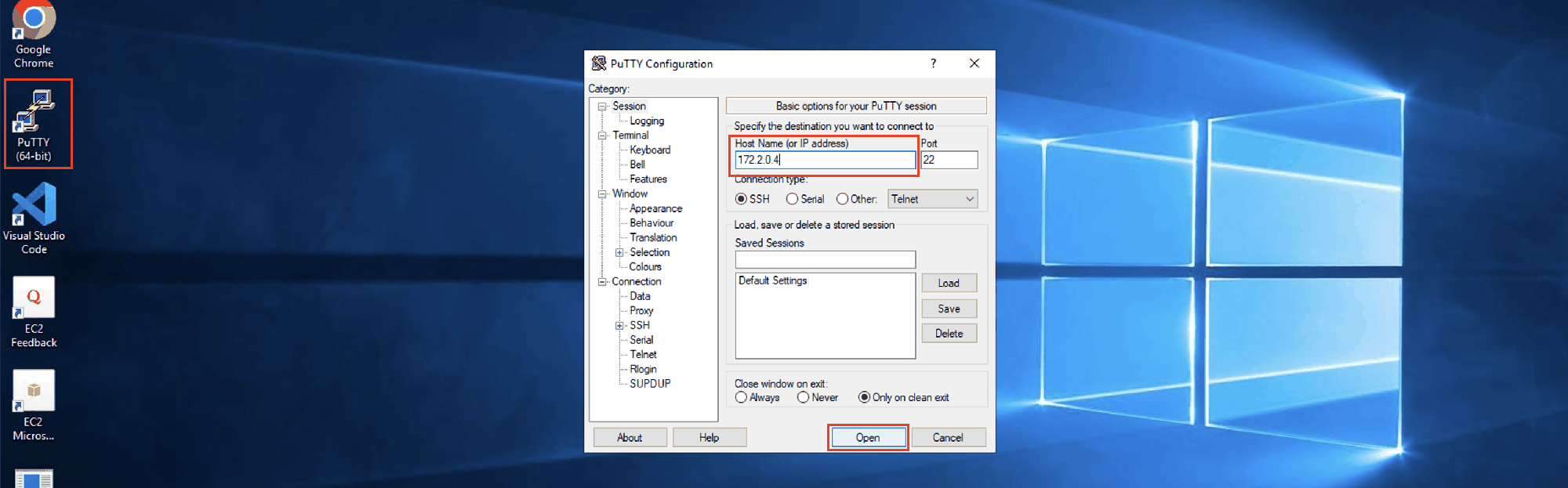
Log in with username
workshopand passwordvFunction2021!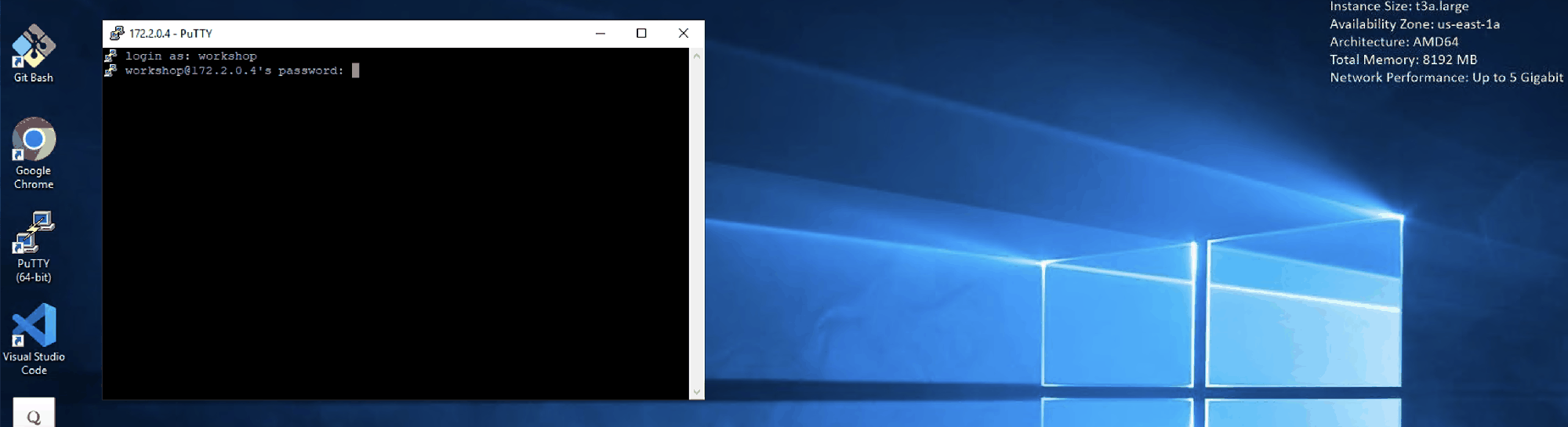
You are now connected to the Linux VM via SSH.

Login to the vFunction platform.
The vFunction platform installation was automated by the workshop installation package, to login into the platform:
In the Windows VM RDP session, open Chrome and browse to
http://<IP address of the Linux VM>.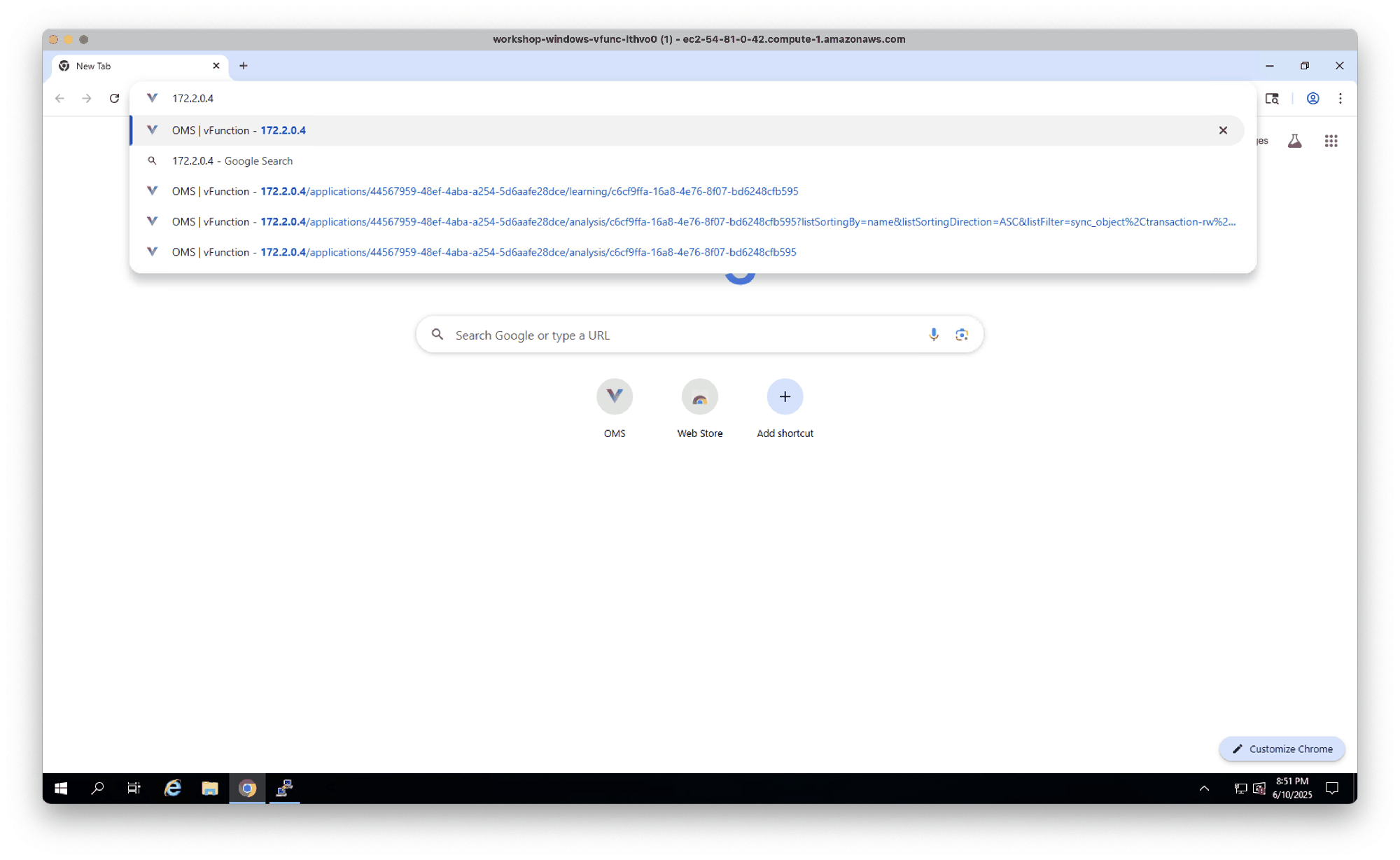
Log in with the e-mail you entered in the installation.yaml file, and the password
vFunction2021!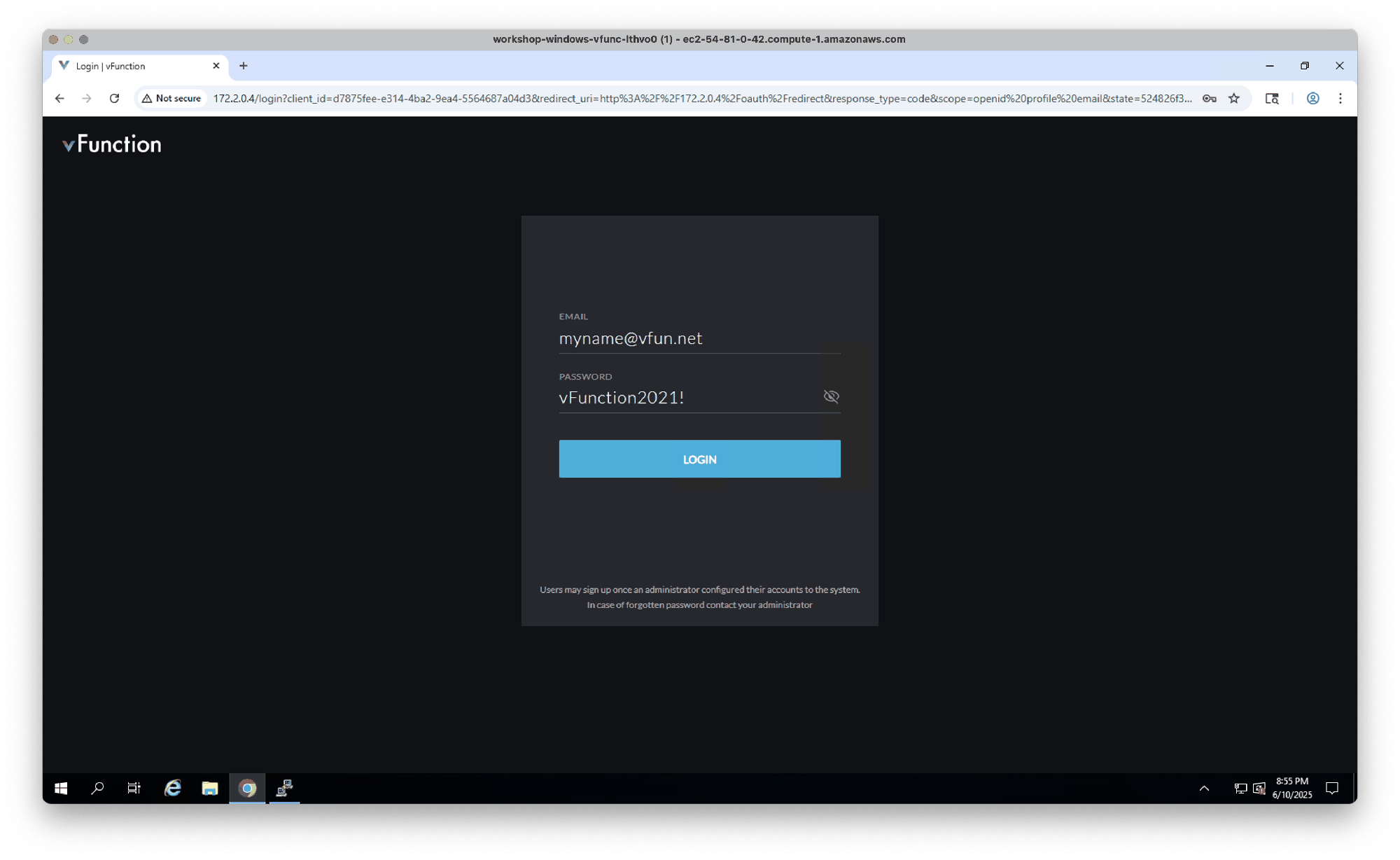
The vFunction platform opens