Connect to the Windows VM as mentioned in the Accessing your VMs section.
Download Kiro
Open the Chrome web browser and navigate to “https://kiro.dev/download”. Click Download IDE for Windows (x86)
https://kiro.dev/download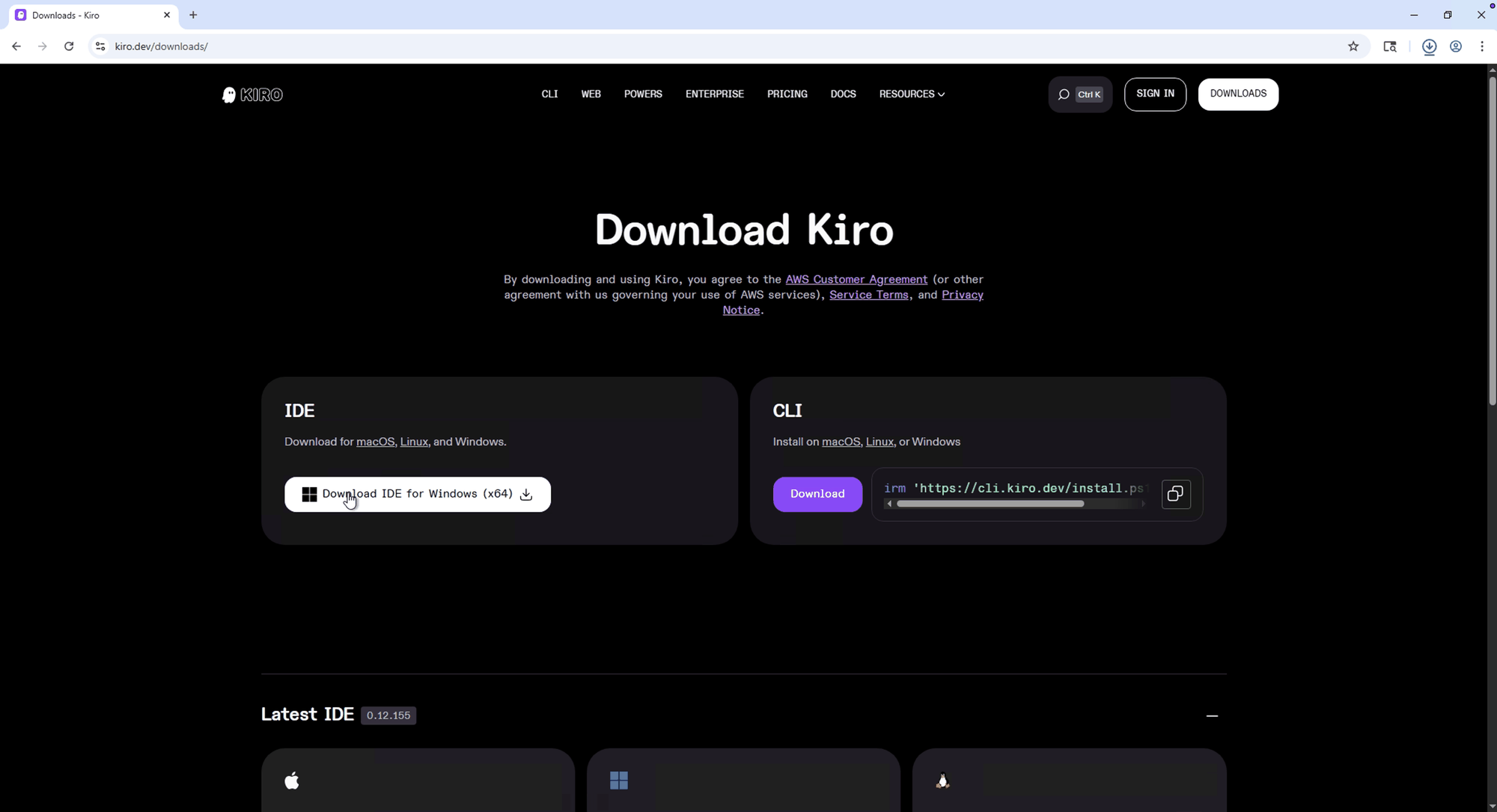
Go to Download’s and Click to start the installer

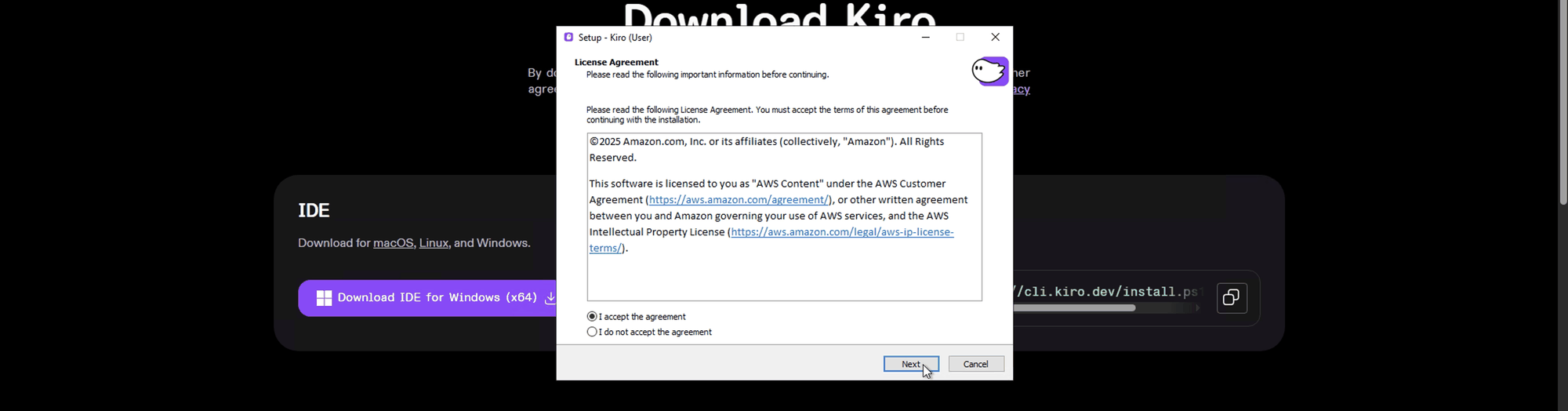
Accept the license agreement and Click Next
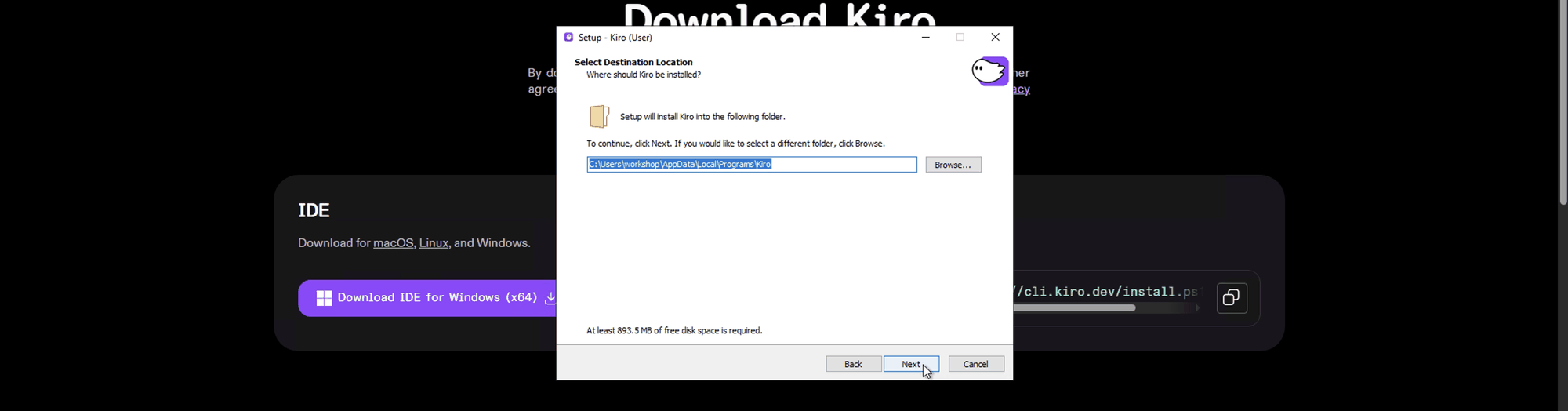
Use the default install location and Click Next
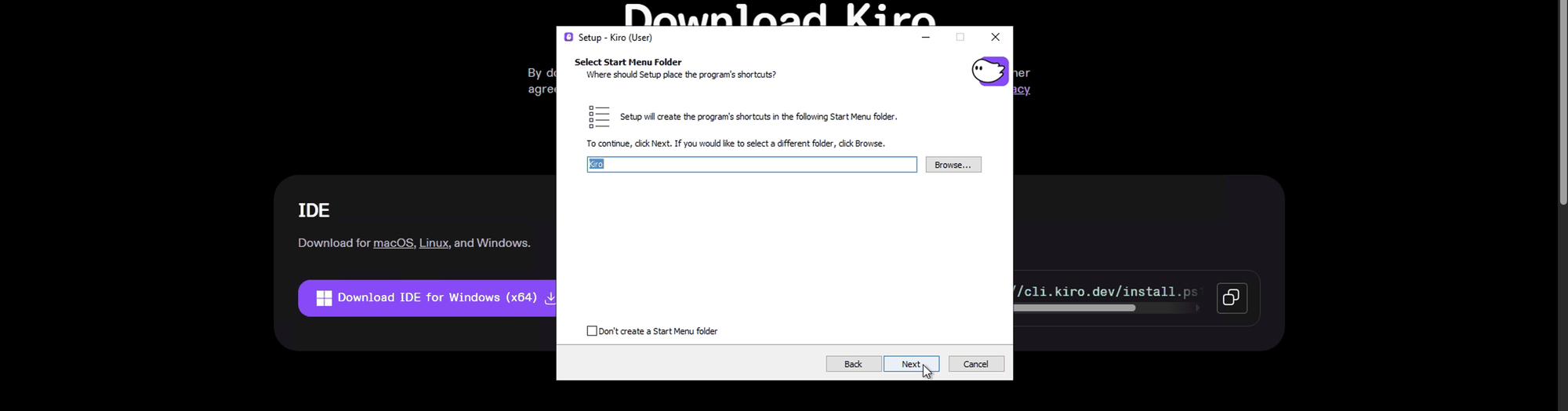
Use the default shortcut and Click Next
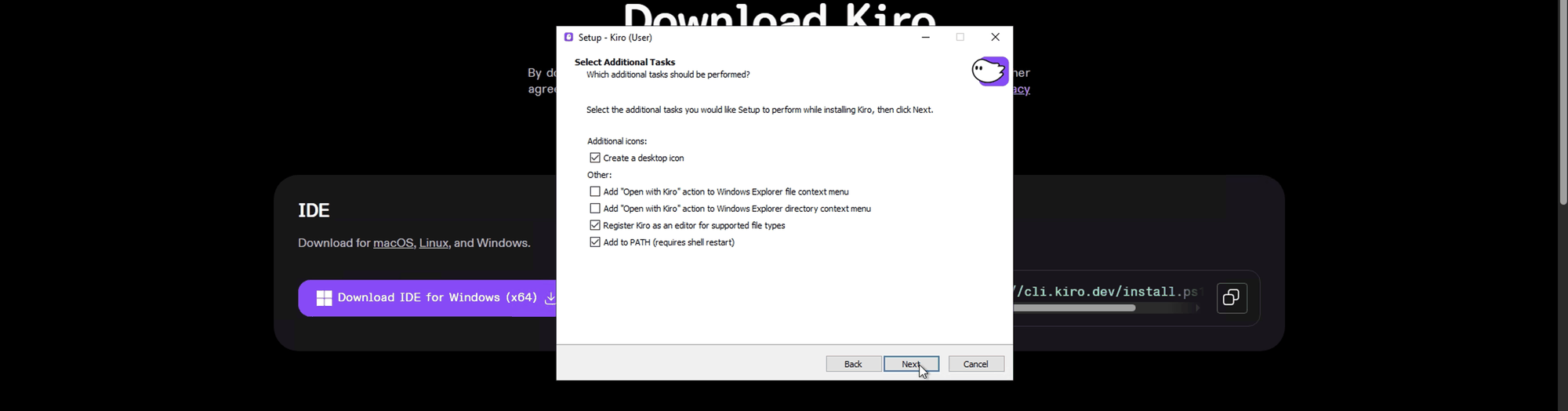
Select “Create a desktop icon” and Click Next
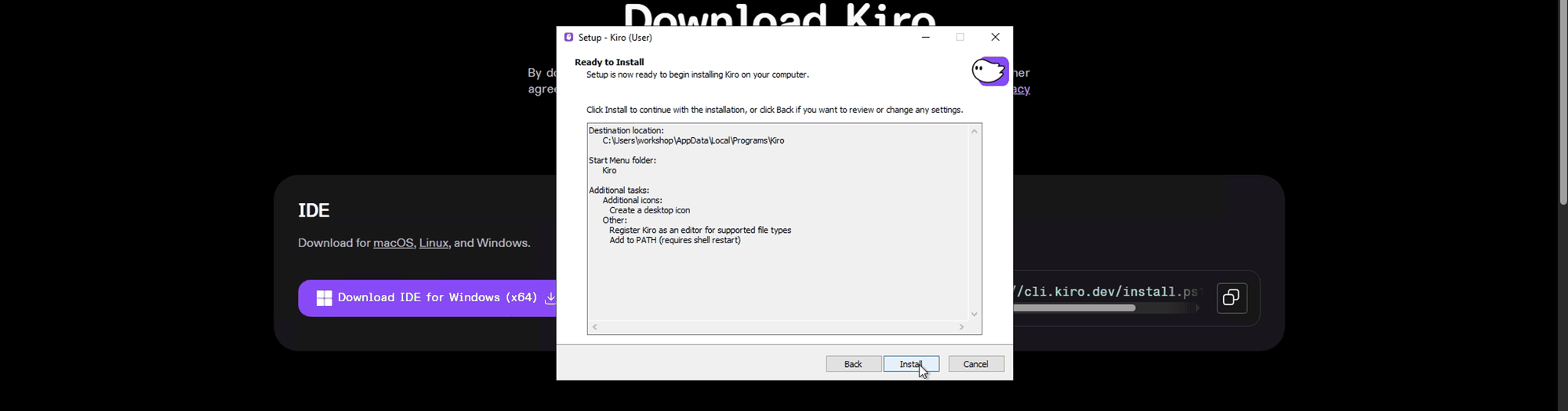
Click Install
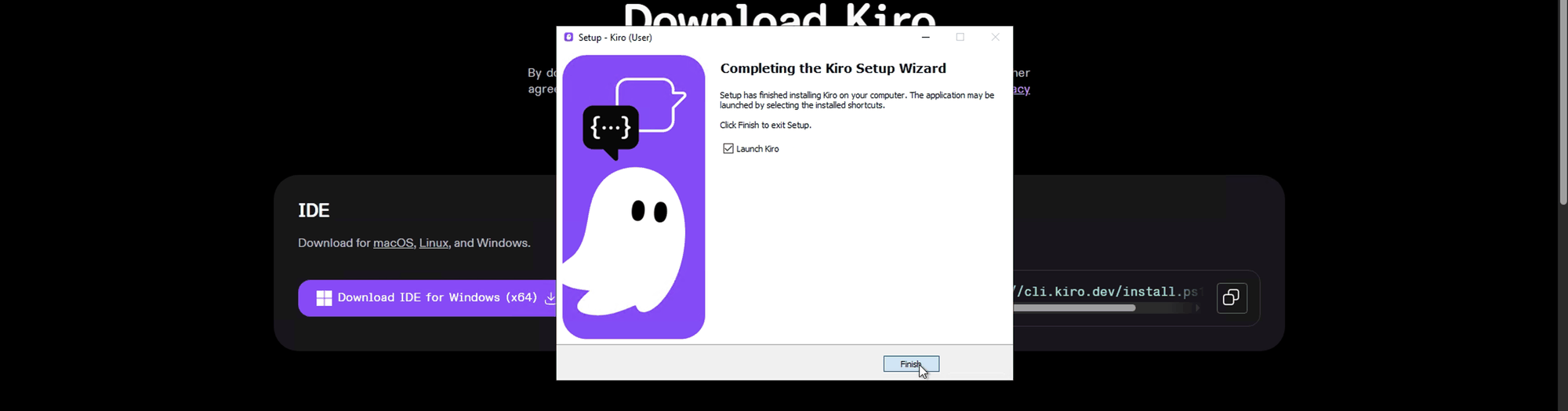
Click Finish
Kiro Login
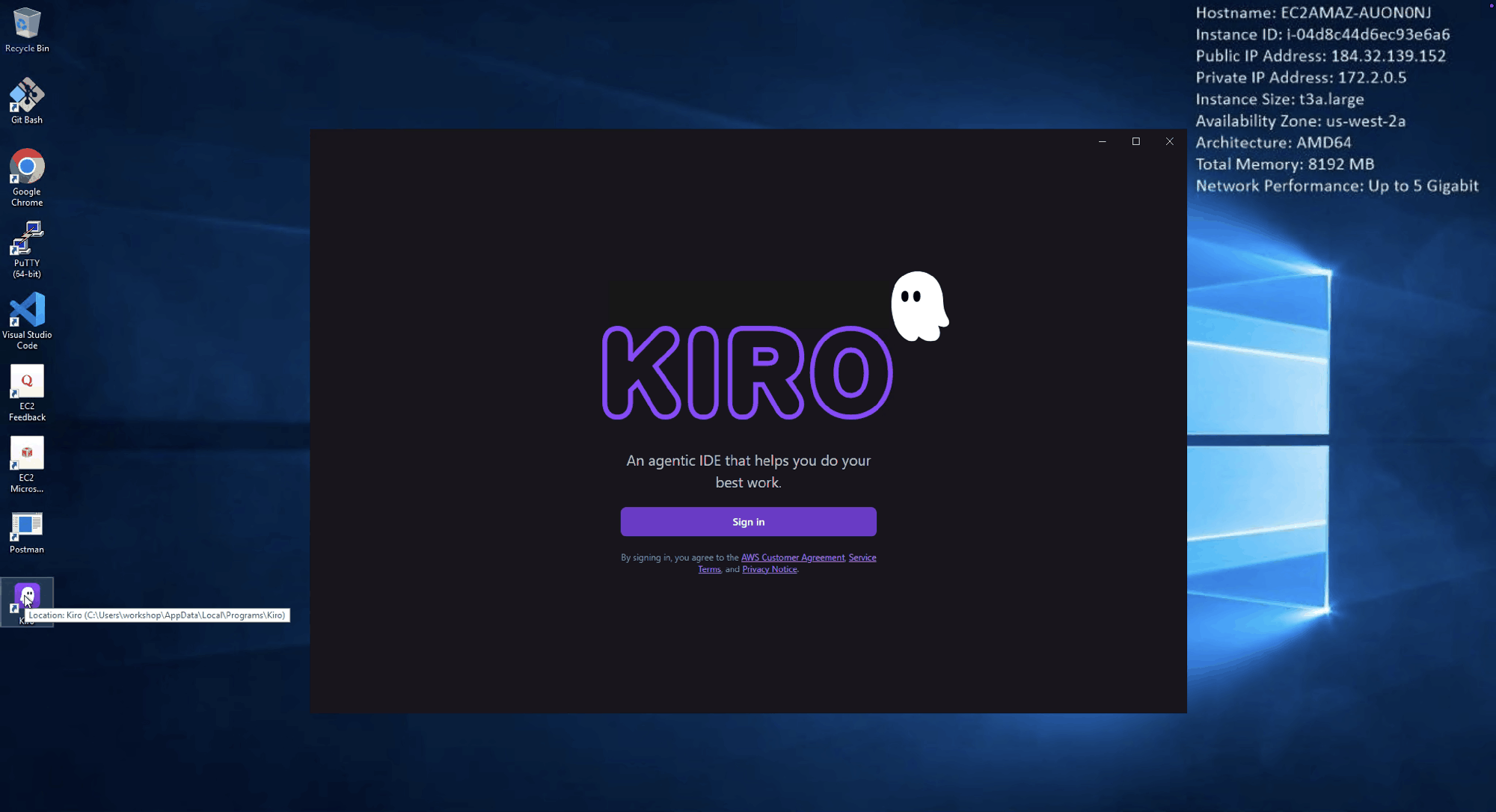
Select Kiro from the taskbar or Double Click the “Kiro” desktop Icon. Click “Sign In”
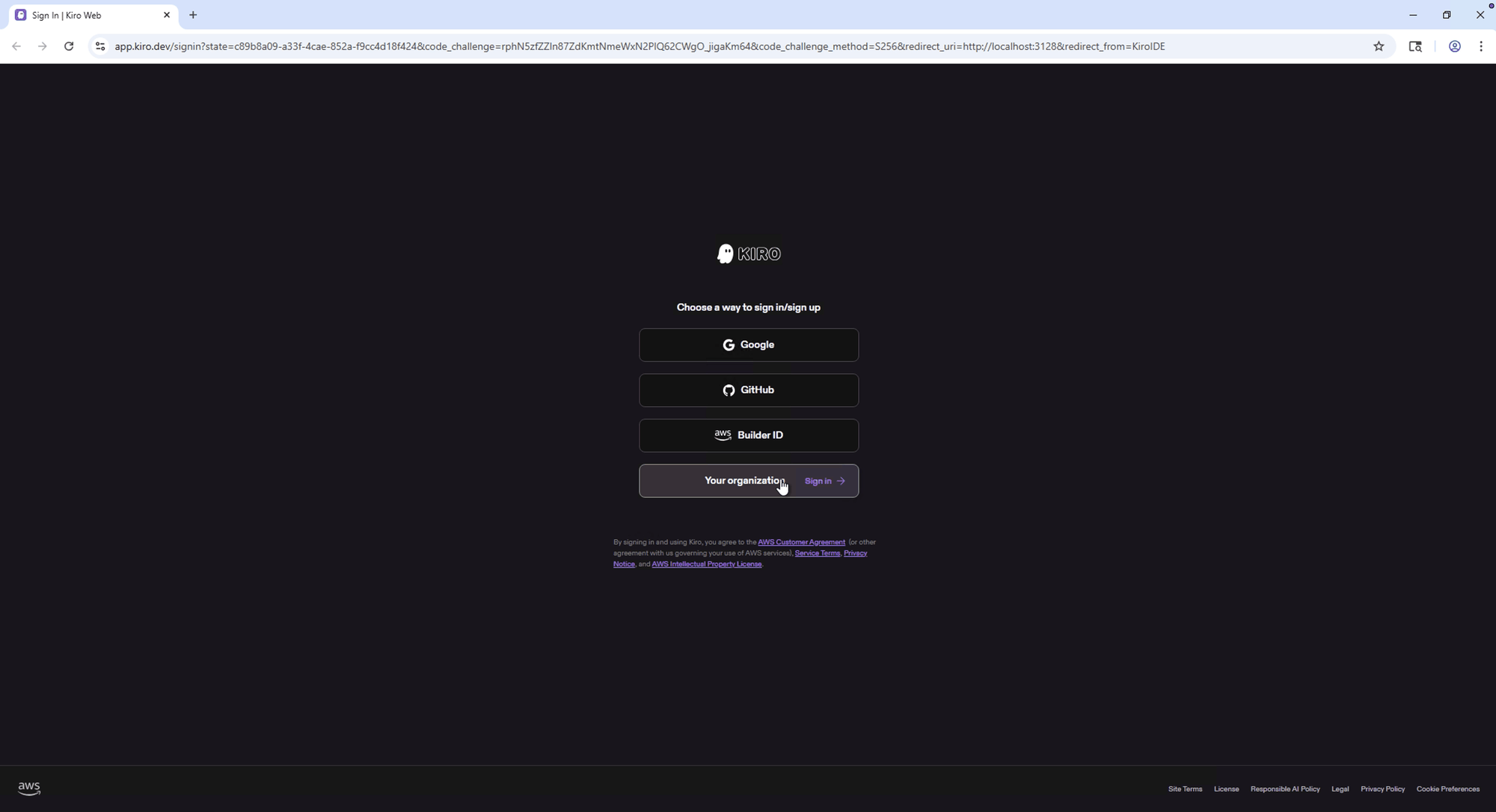
Choose the sign-in method that matches your Kiro subscription, for example Google, GitHub, AWS Builder ID or “Your organization” (IAM Identity Center). The following steps show the “Your organization” option.
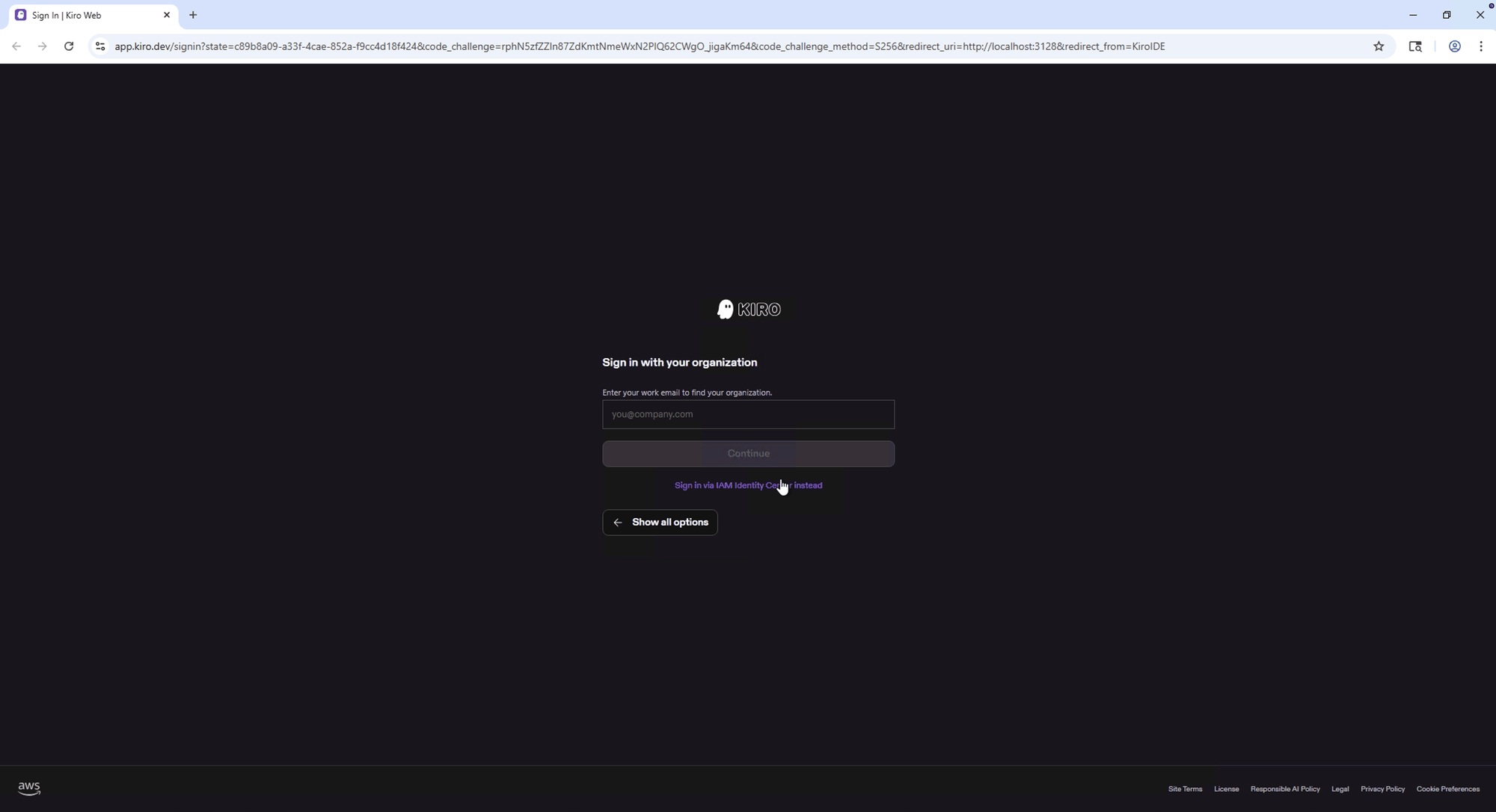
Click to “Sign in via IAM Identity Center Instead”
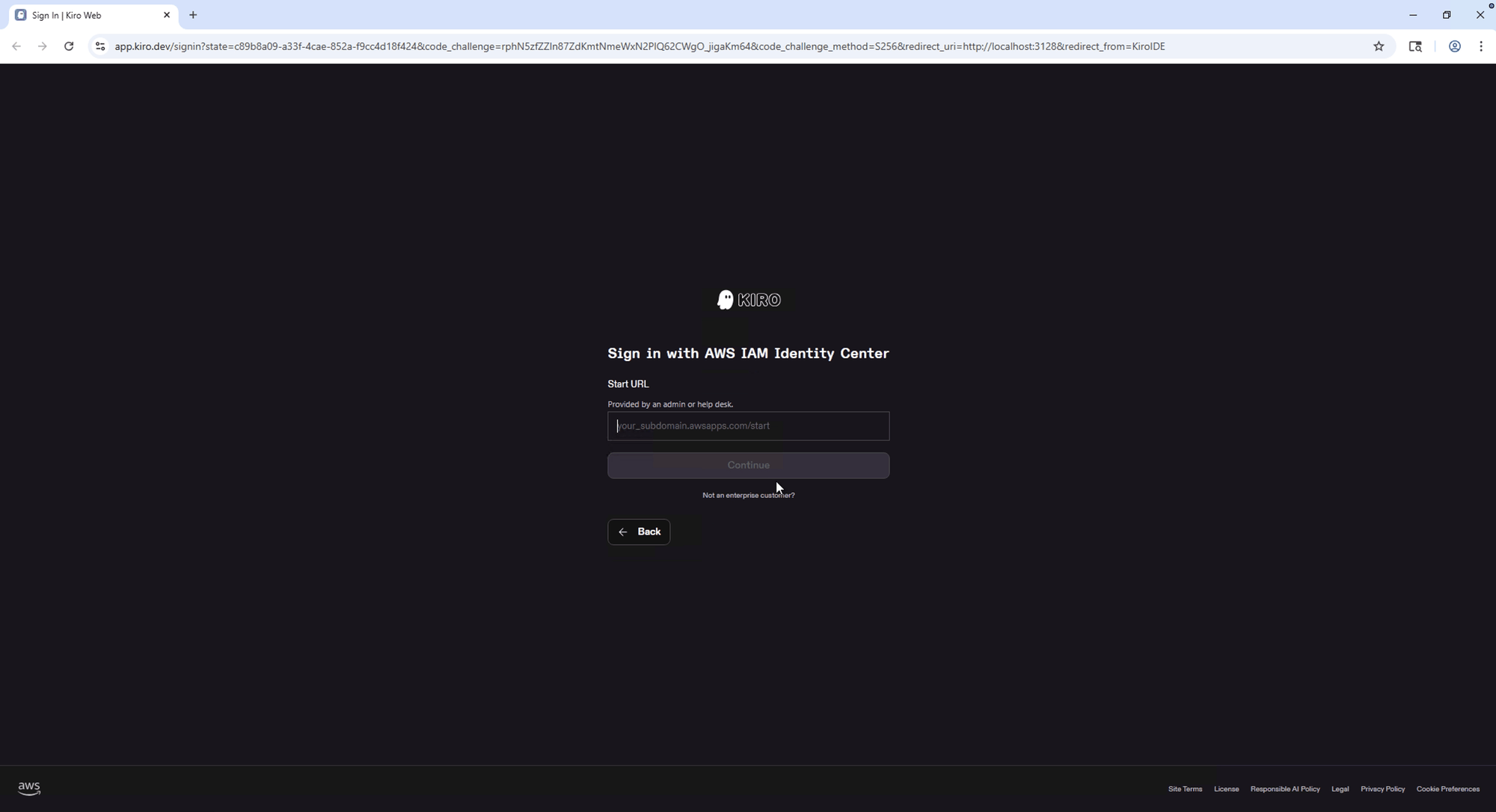
Enter the AWS Access Portal URL and Click “Continue”
Note: This is the AWS access portal URL of your IAM Identity Center instance. Use the details of the Kiro user that you set up in your own AWS account.
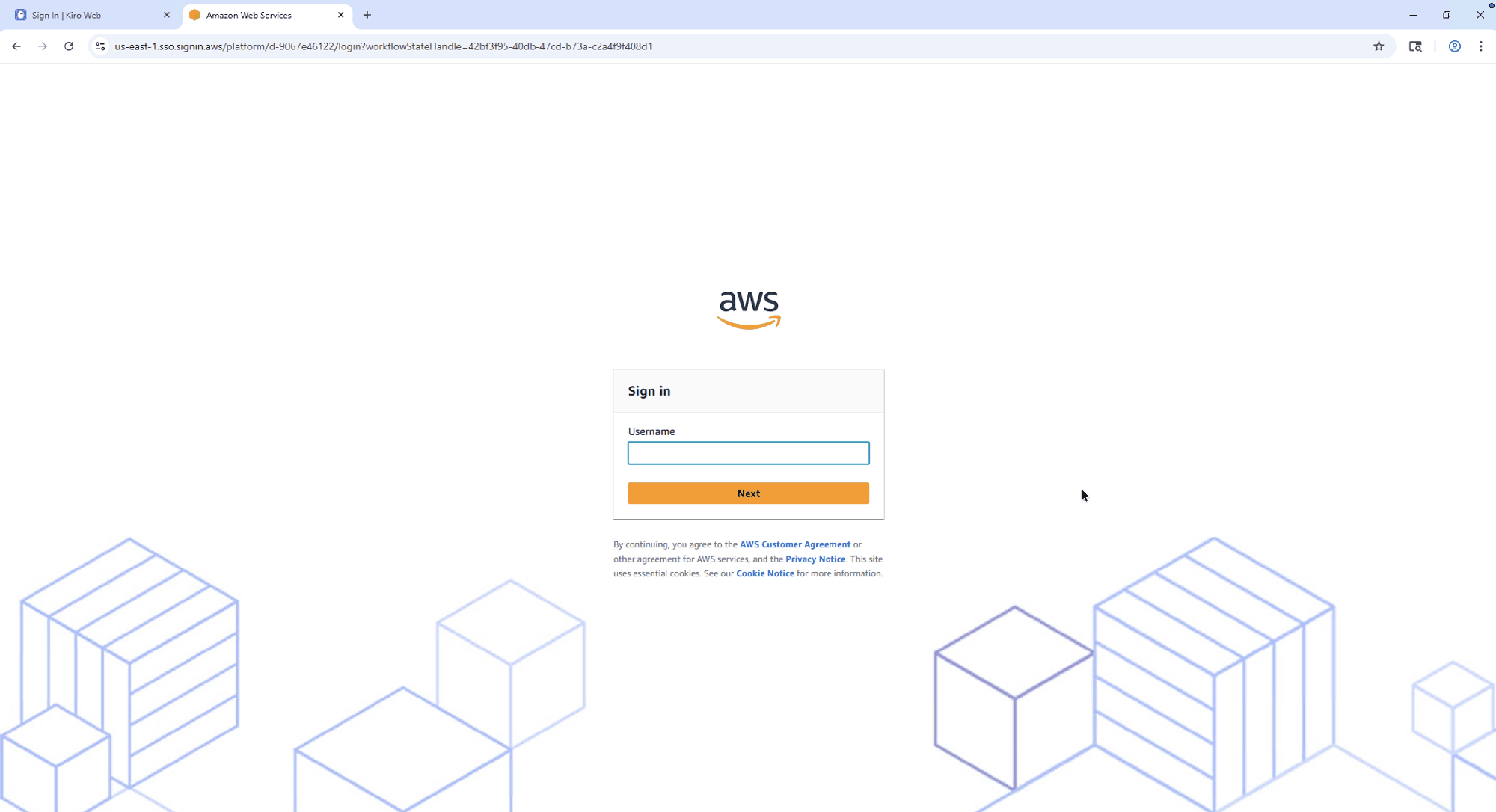
Enter the Username and Password”
Note: Use the username and password of the Kiro user in your IAM Identity Center.
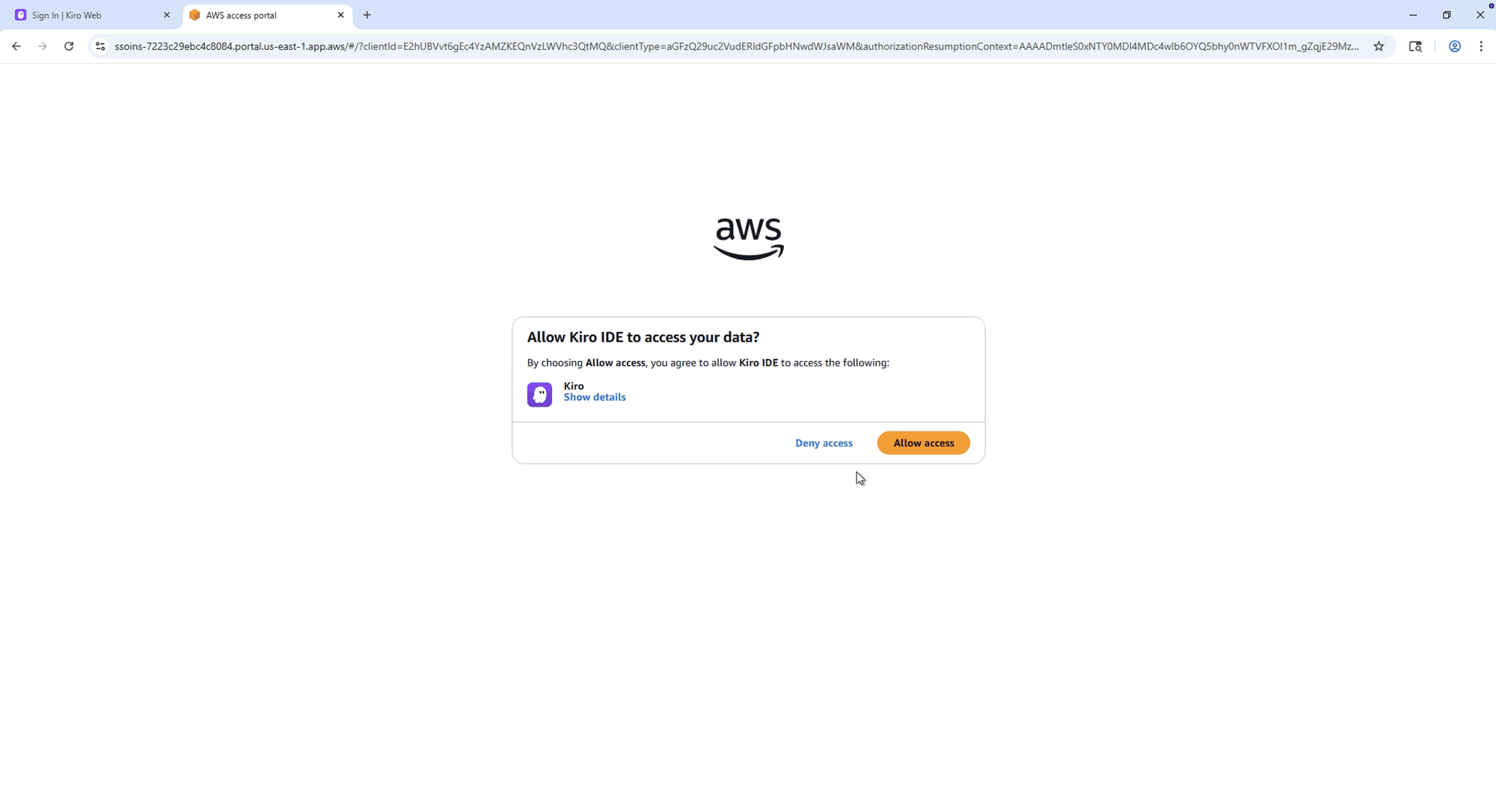
Click Allow access
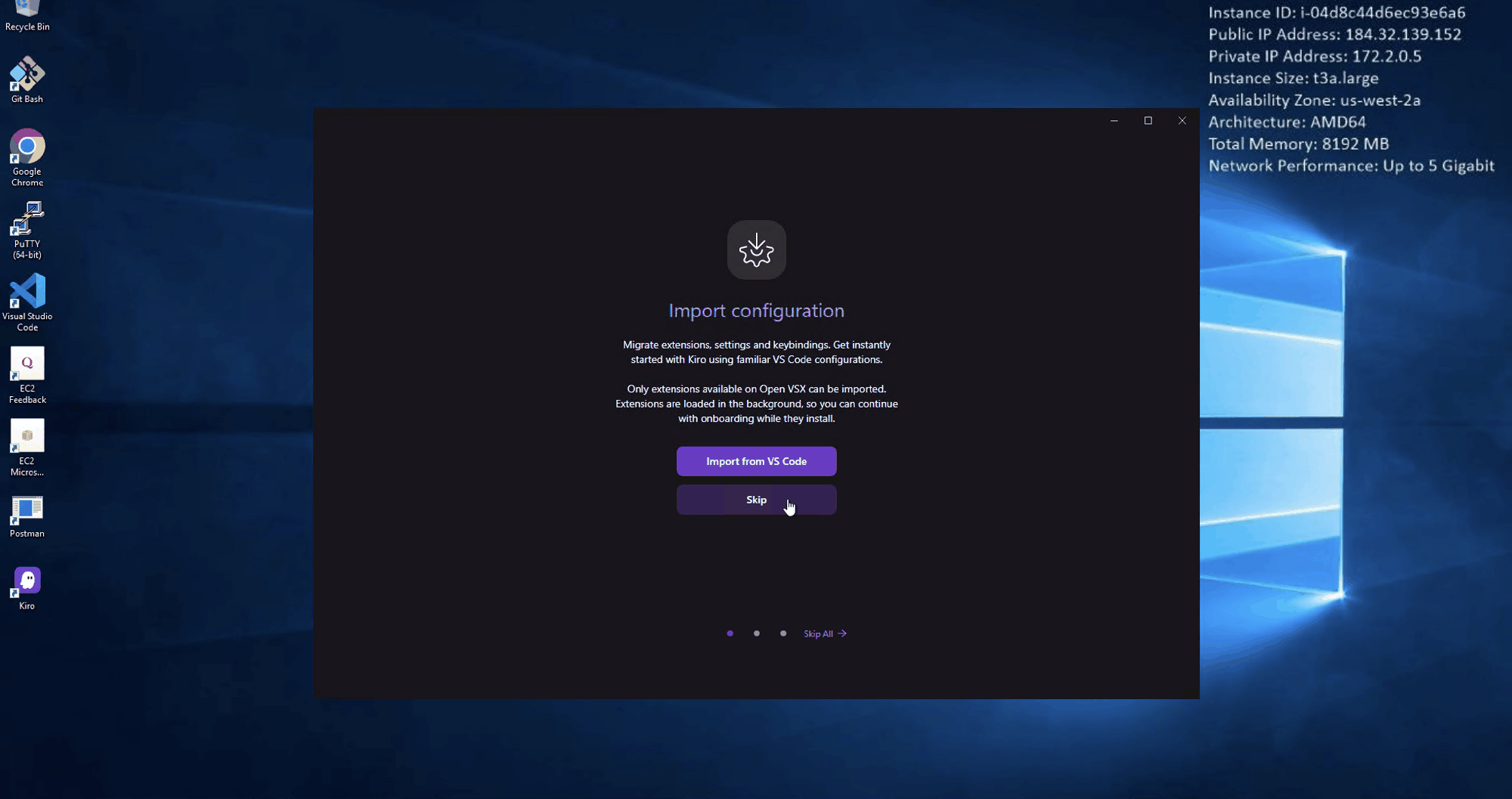
Click Skip (Don’t import from VS Code)
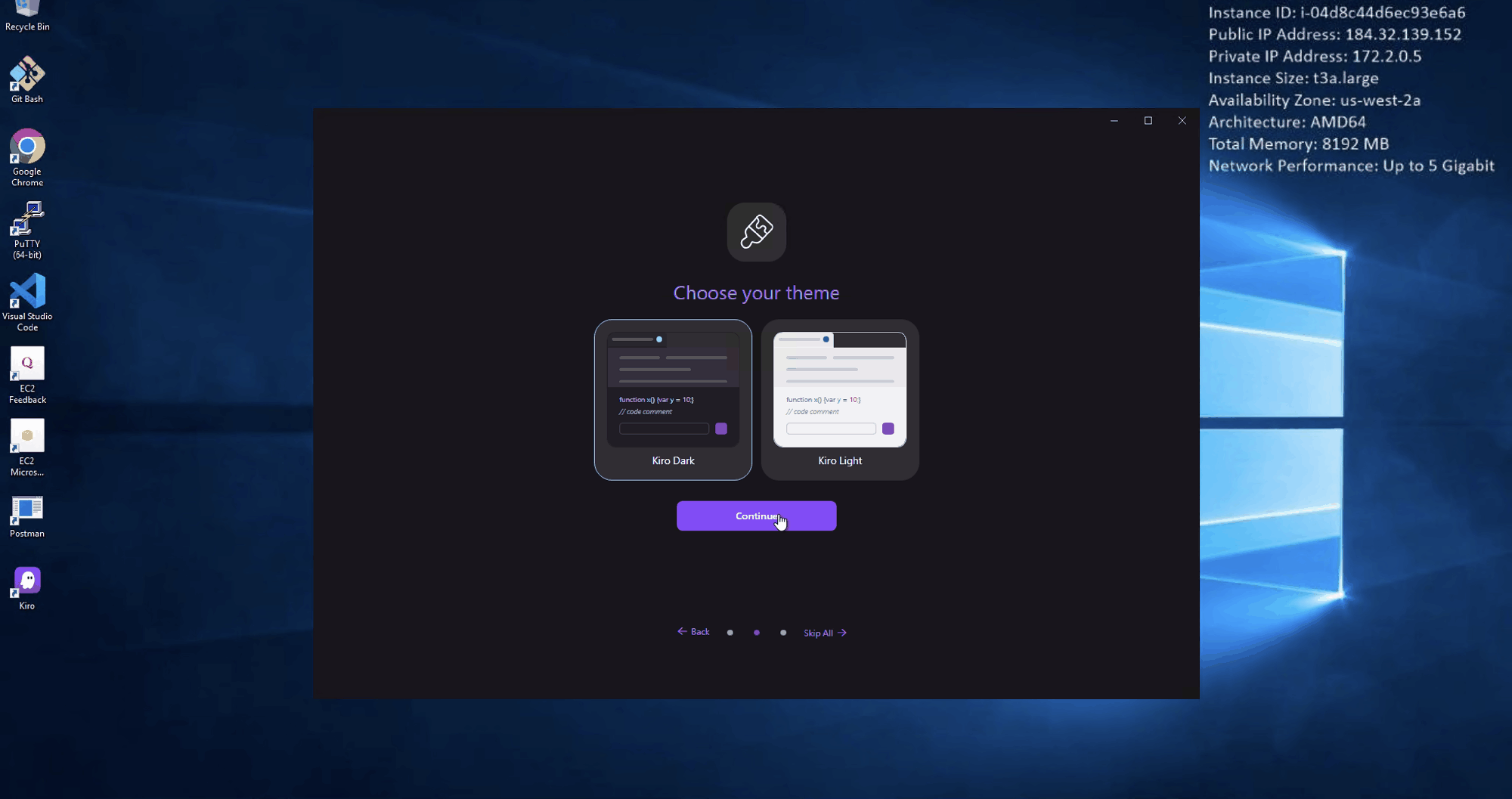
Select a theme and Click Continue
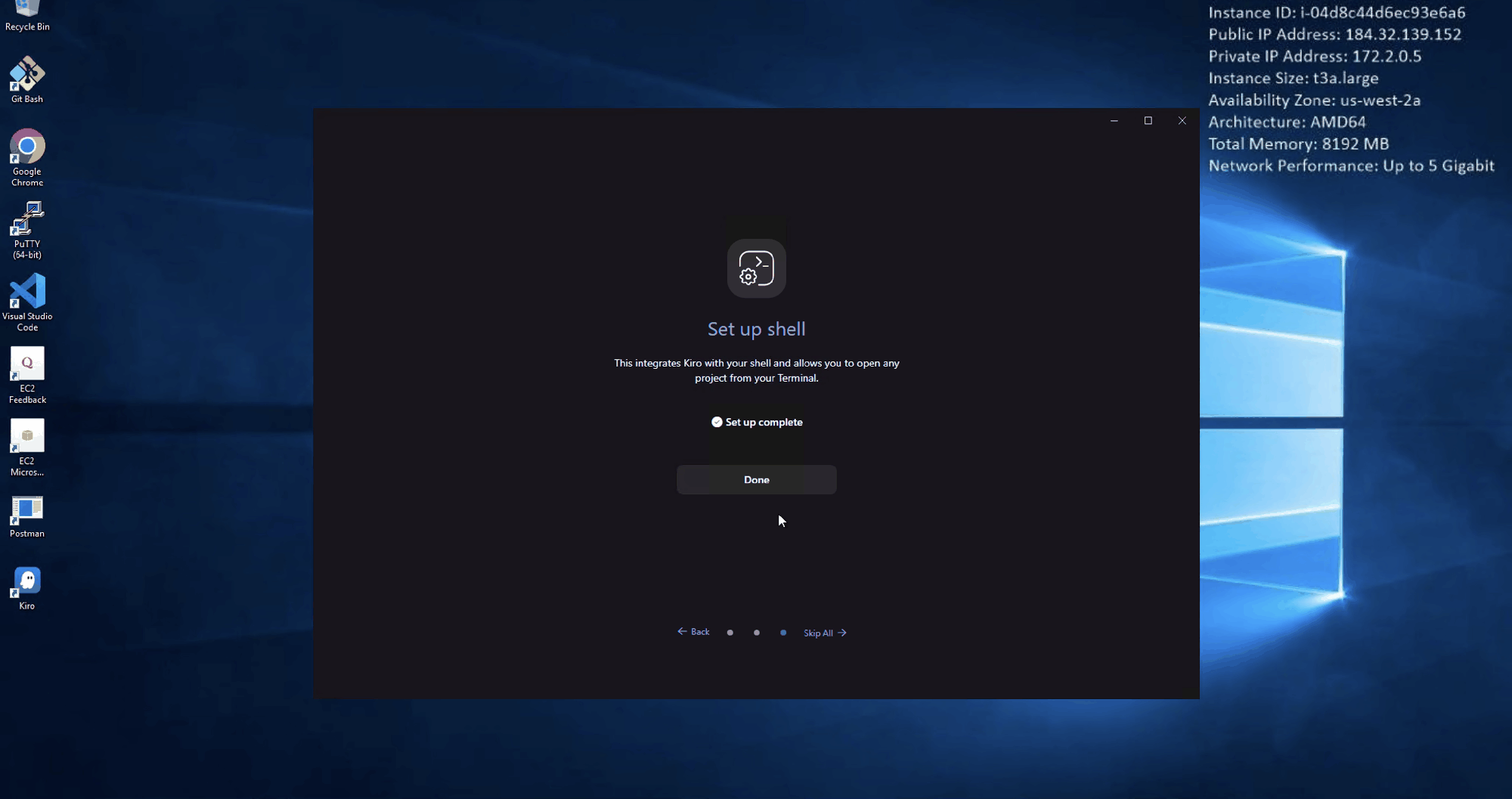
Click Done