
Configuring Kiro IDE with vFunction
In this section we will configure the vFunction extension in Kiro, install the vFunction Kiro Power and vFunction MCP tools that connect to the vFunction MCP server. This will give Kiro access to the architectural context provided by vFunction while refactoring the codebase.
Open the OMS Project
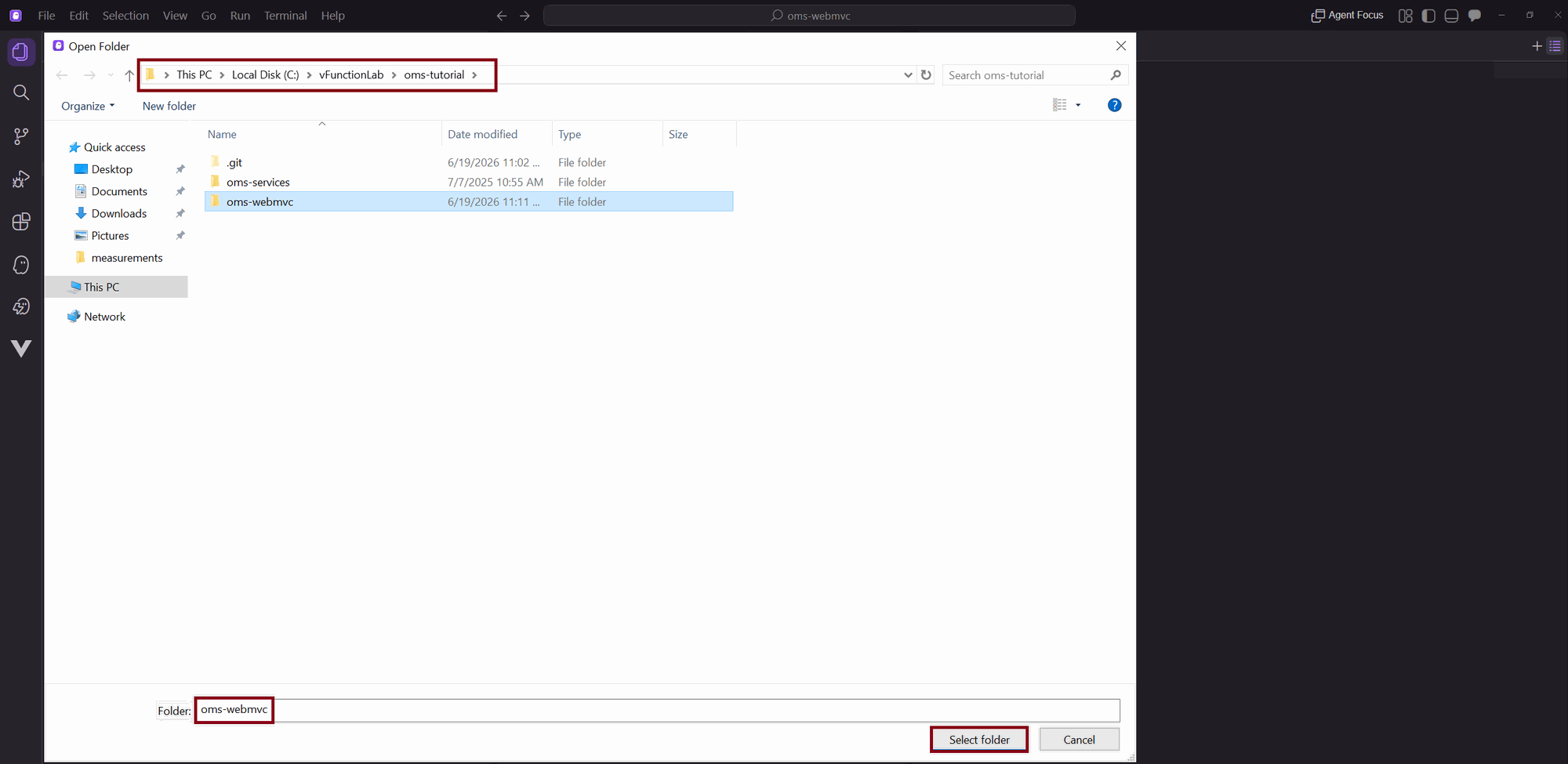
In Kiro, click File → Open Folder and navigate to the OMS application source code directory on your VM (C:\vFunctionLab\oms-tutorial). Select folder “oms-webmvc”
Install the vFunction Extension
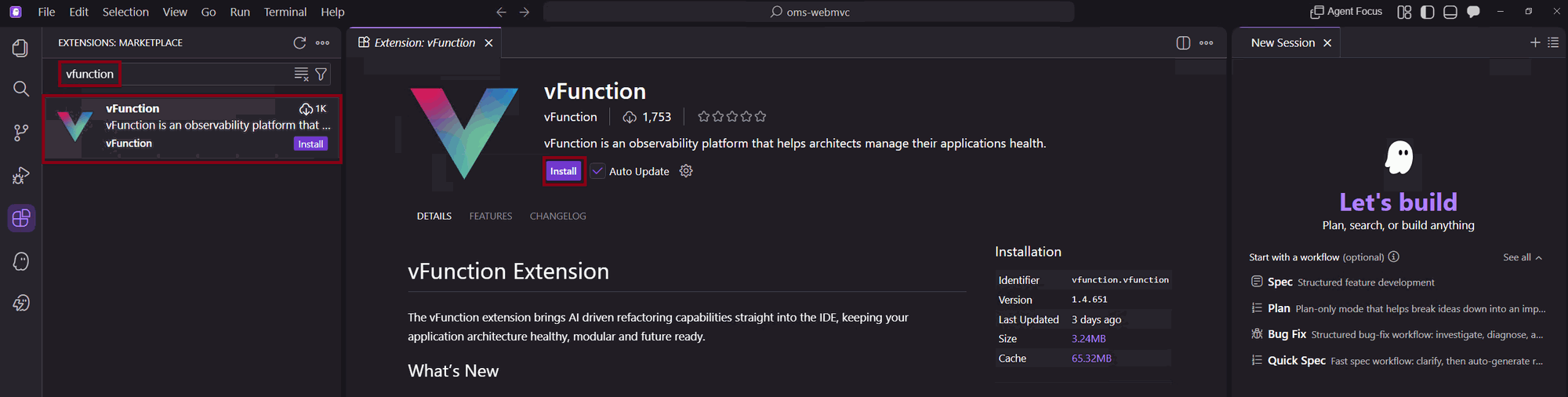
- Open the Extensions panel in Kiro
- Search for “vFunction” in the Extensions Marketplace.
Click Install on the vFunction extension.
After installation, configure the vFunction extension:
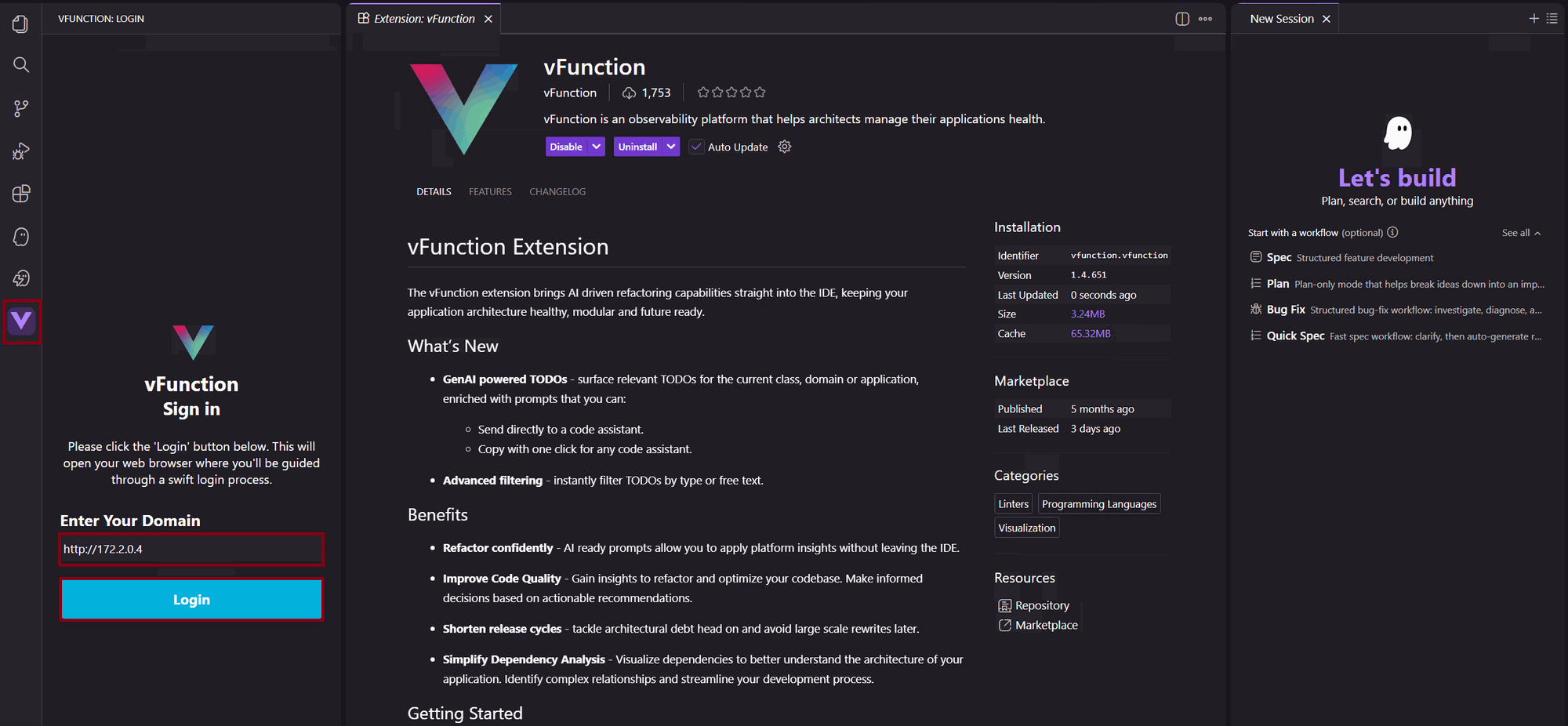
- Click on the vFunction icon on the left
- Under Enter Your Domain enter http://172.2.0.4(vFunction server URL) and click Login
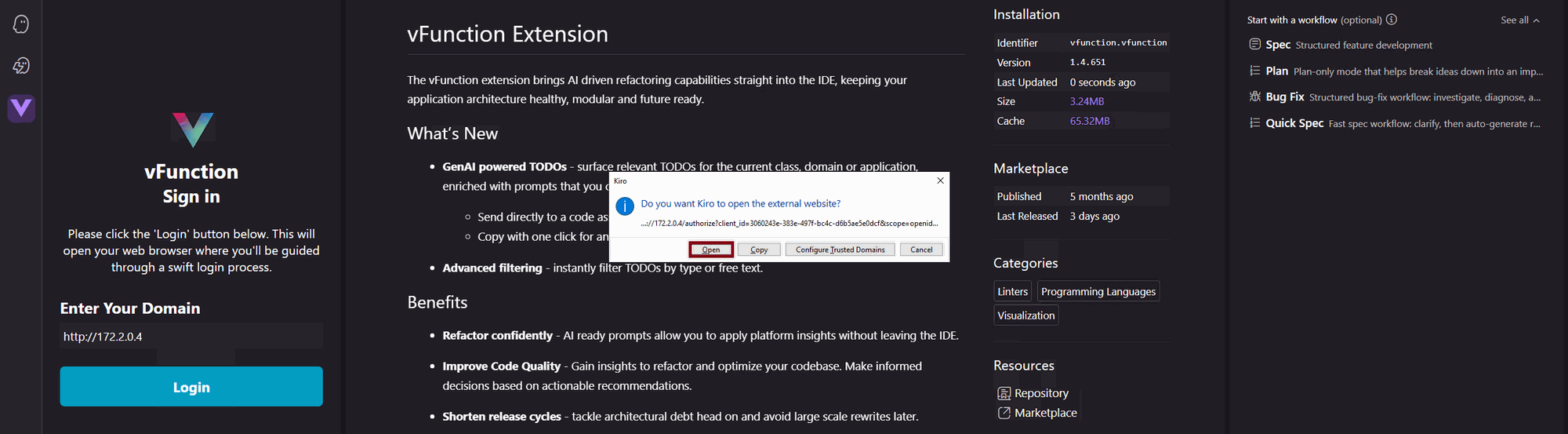
- A popup will ask you to open the vFunction URL in a new tab. Click Open
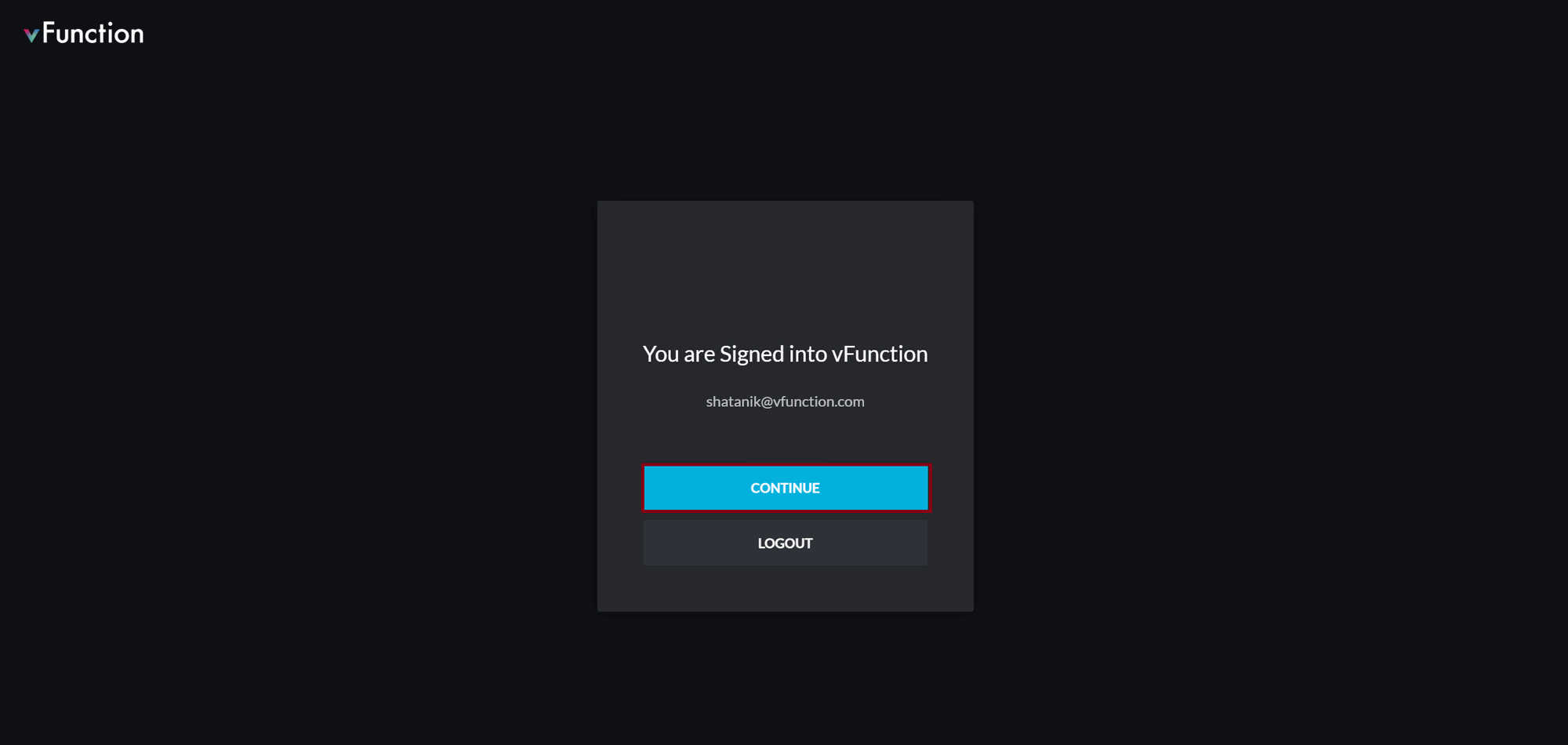
- In the browser, login to vFunction or select CONTINUE if already logged in
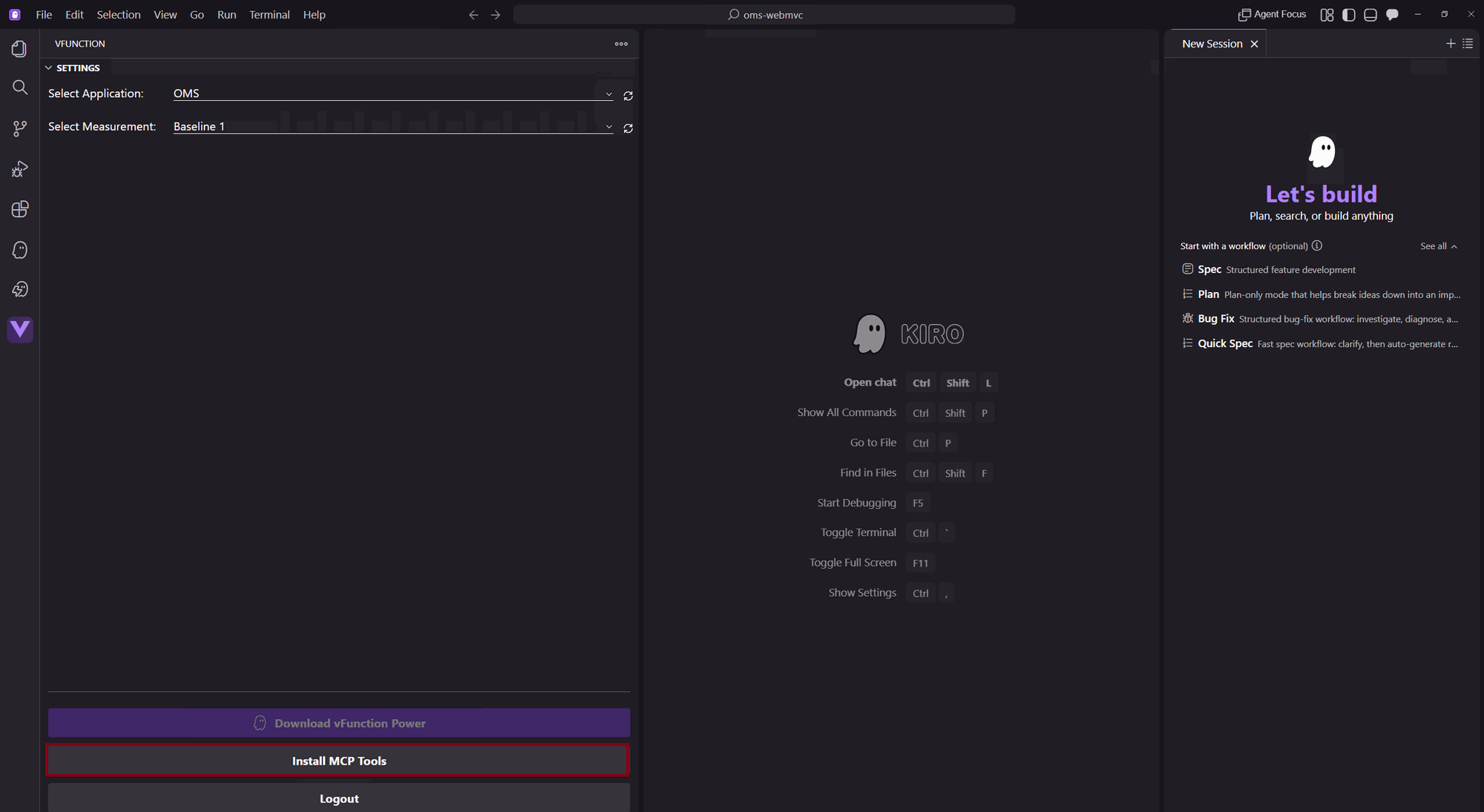
- In the IDE, go to vFunction extension SETTINGS
- Beside Select Application, choose OMS
- Beside Select Measurement, choose the baseline measurement e.g. Baseline 1

Install the vFunction Power
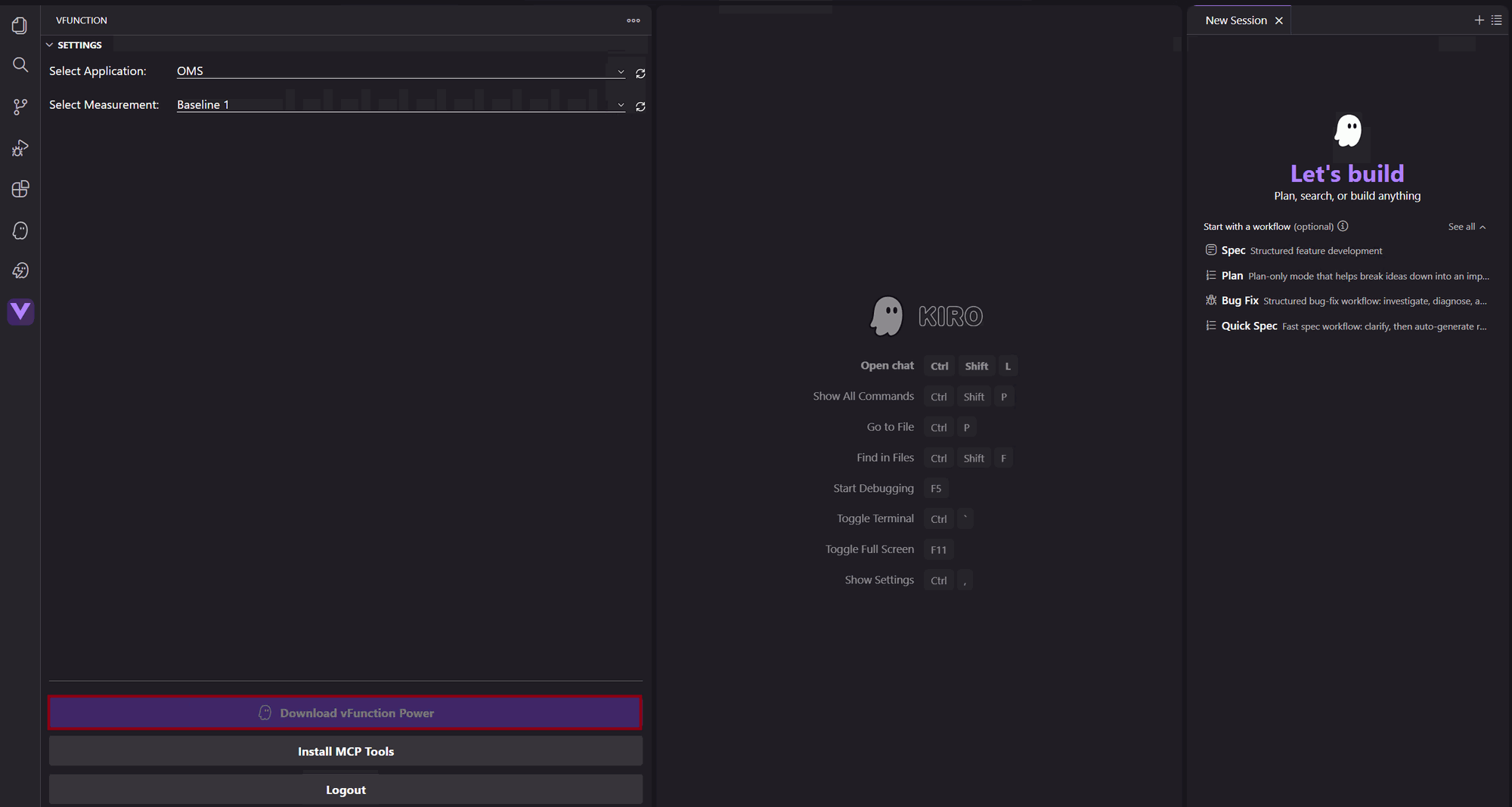
In the vFunction extension settings panel, click on Download vFunction Power
- When the dialog box opens for a download location, choose “C:\vFunctionLab\oms-tutorial\oms-webmvc\”
Click on the Kiro Powers icon on the left
- Click on Add Custom Power
- Select Import power from a folder

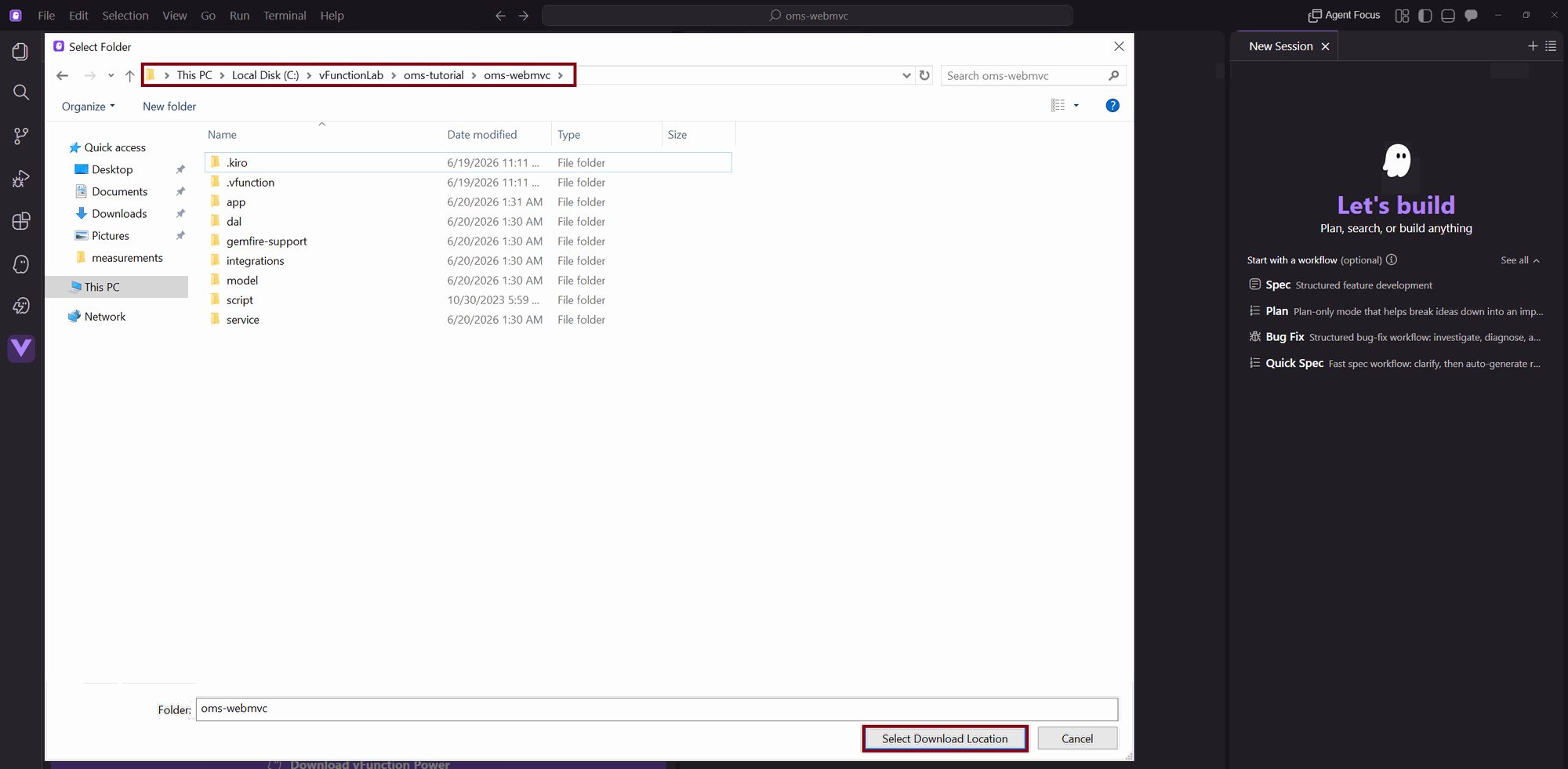
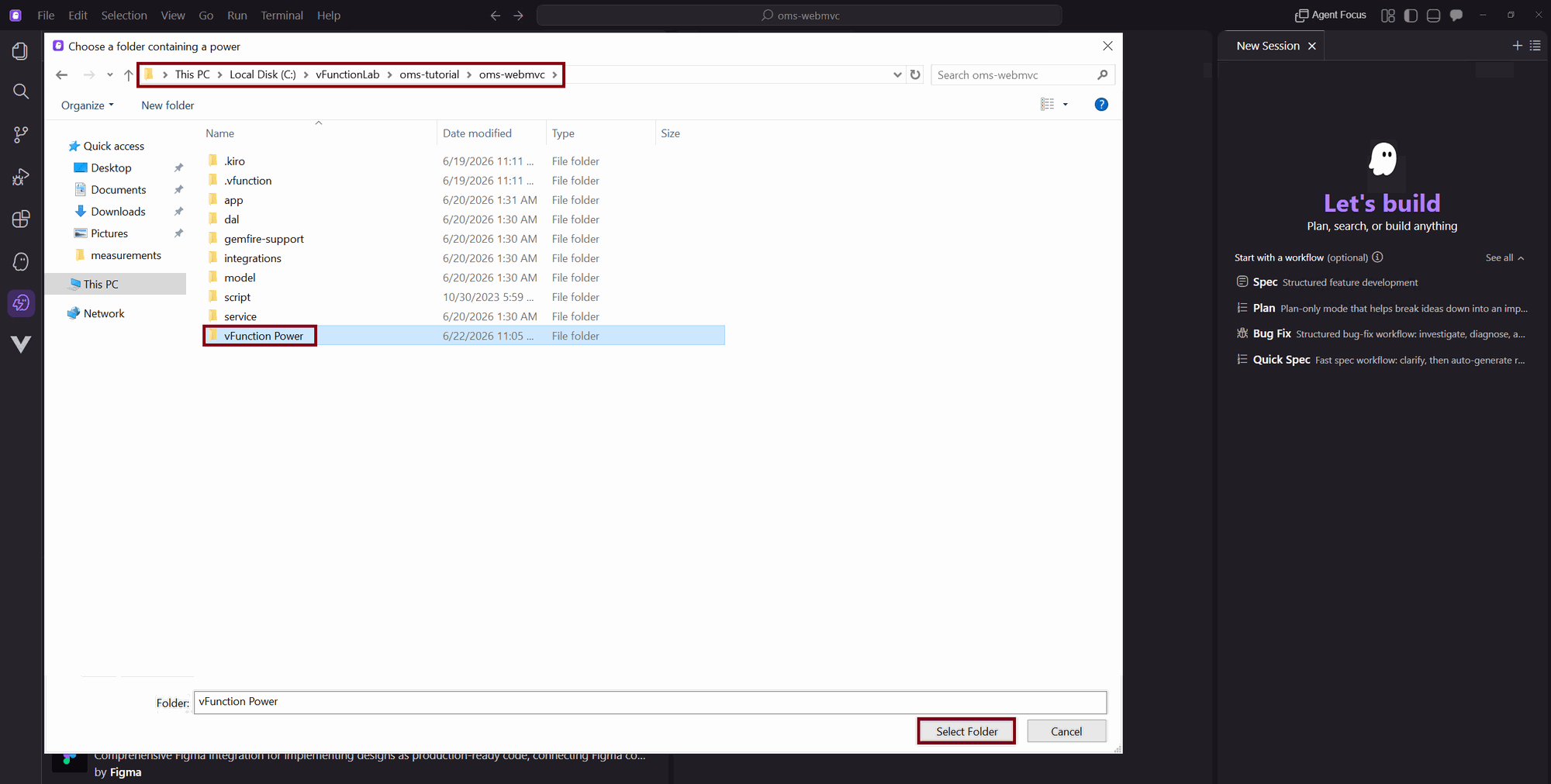
- Navigate to “C:\vFunctionLab\oms-tutorial\oms-webmvc” and select the “vFunction Power” folder
Connect the vFunction MCP Server
Go back to the vFunction extension, in the SETTINGS panel, click on Install MCP Tools
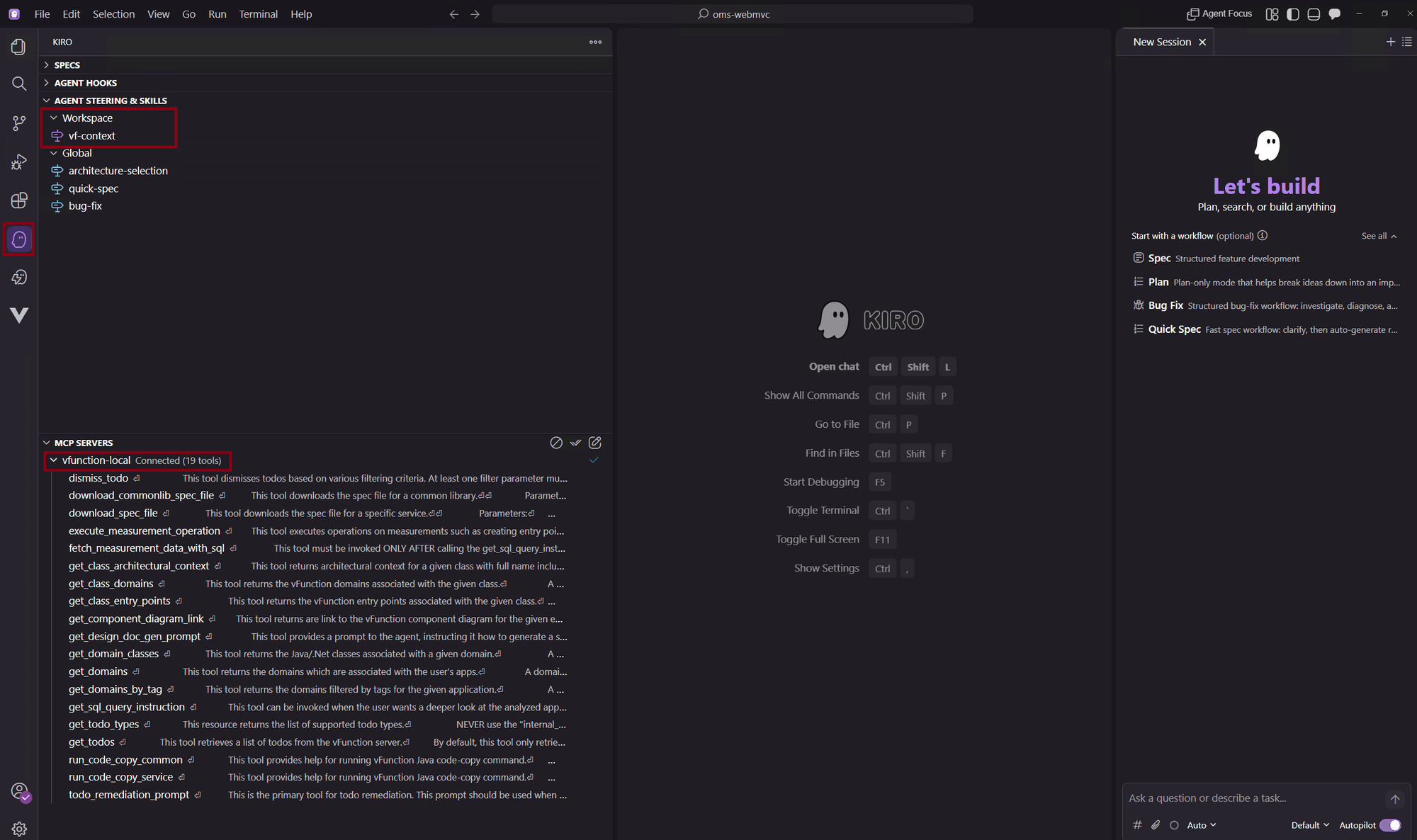
Checkpoint: Verify that the vFunction MCP server is connected by clicking on the Kiro icon on the left and seeing a vfunction-local MCP server connected in the MCP SERVERS panel. Also notice the vf-context skill added from the vfunction Kiro power
Wrap Up
You now have Kiro configured with the OMS project loaded, the vFunction extension installed, the vFunction Power installed, and the MCP server connected. In the next section, we will use Kiro with vFunction’s architectural context to fix a TODO.