
Setup AWS workshop environment
In this section, you will create and deploy the necessary AWS services required for this workshop by running a Terraform package.
Prerequisites
AWS Account
- You must have an AWS account with sufficient permissions to:
- Run Terraform
- Create EC2 instances
- Create VPCs and Subnets
- You must have an AWS account with sufficient permissions to:
Bash Shell Environment
- A bash shell authorized to run commands on your AWS account, with at least 1 GB of available disk space.
- Options include:
- AWS CloudShell (accessible via the icon in the top-right toolbar of the AWS Console, provided you have sufficient quota)
- Linux machine with AWS CLI configured and access to your AWS account
To confirm that your shell can access AWS and that your credentials are valid (not expired), run the following command:
aws sts get-caller-identity
Run the installation package to deploy the Workshop resources
Perform the following in the Bash Shell Environment:
Download the workshop installation package from the vFunction portal using the command:
curl -L -o vfunction-workshop-aws-installation.tgz https://portal.vfunction.com/file/51a5b730a4115c35378c4d3a42690555/55406770-e7b7-4482-9892-8174fbd096c9/vfunction-workshop-aws-installation.tgzUnpack the installation package
tar zxvf vfunction-workshop-aws-installation.tgzEdit the file ./config/installation.yaml file:
vim ./vfunction-workshop/config/installation.yamlSet the region to which the resources will be deployed- you can use any US region
Fill in your org_name (must be shorter than 50 chars) and email (e.g., “my company” as org_name and “myname@company.net” as email)
Set distributed_mode flag to false and monolith_mode to true
Run the installation and wait for the script to complete
bash ./vfunction-workshop/install.sh
Setup Remote Desktop to Workshop Windows VM
Switch to the EC2 Instances page in the region you set to deploy the workshop
Open the EC2 instance with the name starting with workshop-windows (should be in running state) and copy its public IPv4 Address
Open your Remote Desktop Protocol (RDP) client and paste the IP as the Host Name or Address
Start the RDP session. The user name is
workshopthe password isvFunction2021!If prompted, approve the certificate to access the remote machine
You should now see the Windows Desktop running on the Dev VM.
Access the Workshop Linux VM
Copy the private IP address of the Workshop-Linux VM from the AWS console
In the Windows VM (Remote Desktop), run PuTTY (icon is on the desktop)
In the PuTTY dialog, enter the private IP address of the Linux VM and click Open
Login using the same credentials (login:
workshoppassword:vFunction2021!)
Login to the vFunction server
The vFunction platform installation was automated by the Workshop Installation package.
To login to the platform:
Open Chrome in the Windows VM (Remote Desktop)
Go to the following URL: http://[IP Address of the Linux VM]
Login with the e-mail you entered in the installation.yaml file. The password is
vFunction2021!
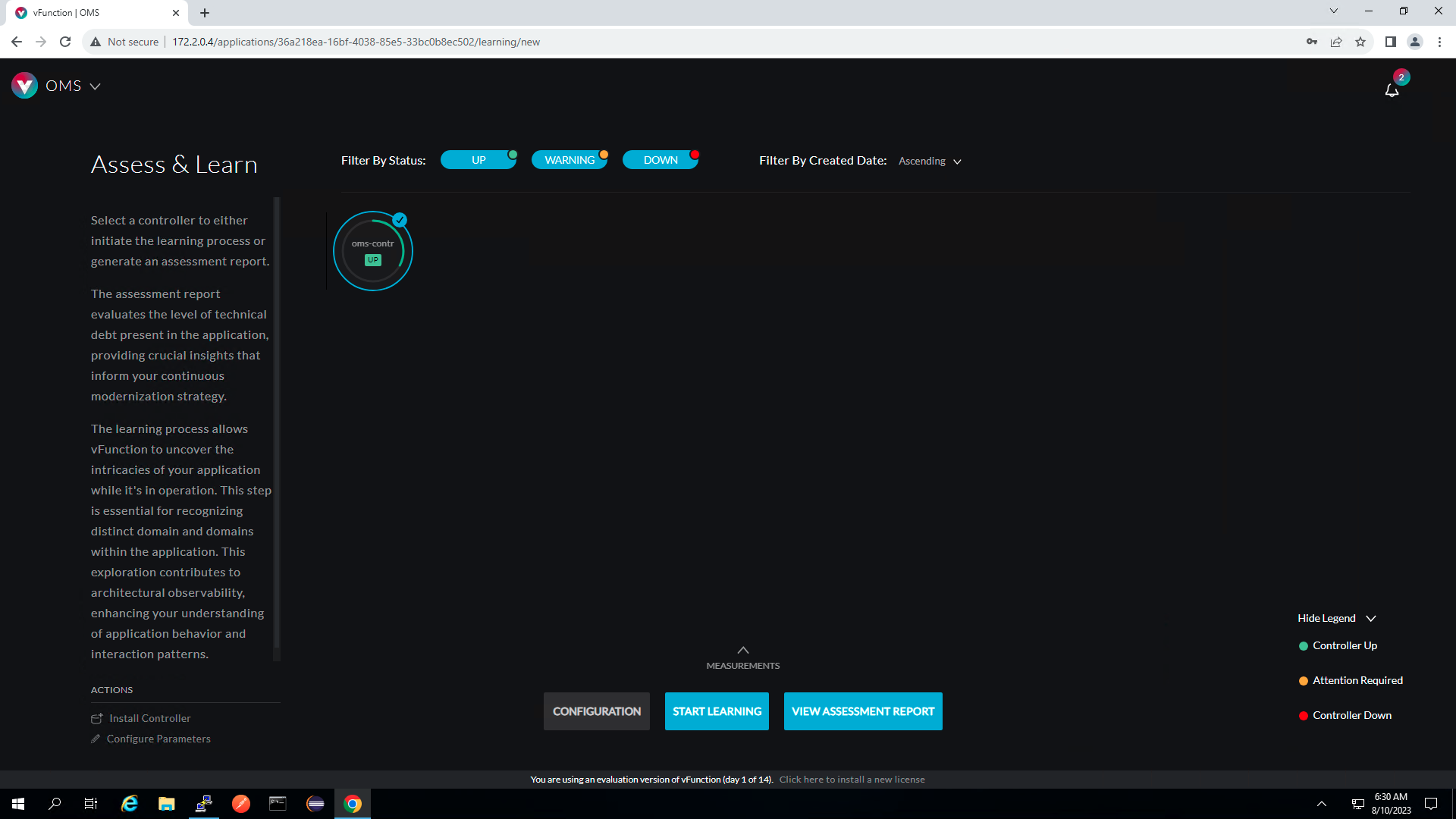
You should see a screen similar to:
You are now ready to proceed to Learning.